


About This Guide
This mini-guide demonstrates how to quickly retrieve a Trello Model ID (which is the unique digital fingerprint of your Trello Board) using the DigitalBPM platform. This is especially useful when you are setting up a Trello Webhook to track changes, lists, or cards on a specific board. By following this guide, you will create a simple workflow that requests a list of your Trello boards and displays their unique IDs. You can then copy the necessary ID and paste it into your Webhook configuration.
Step 1: Create a New Workflow and Trigger Block
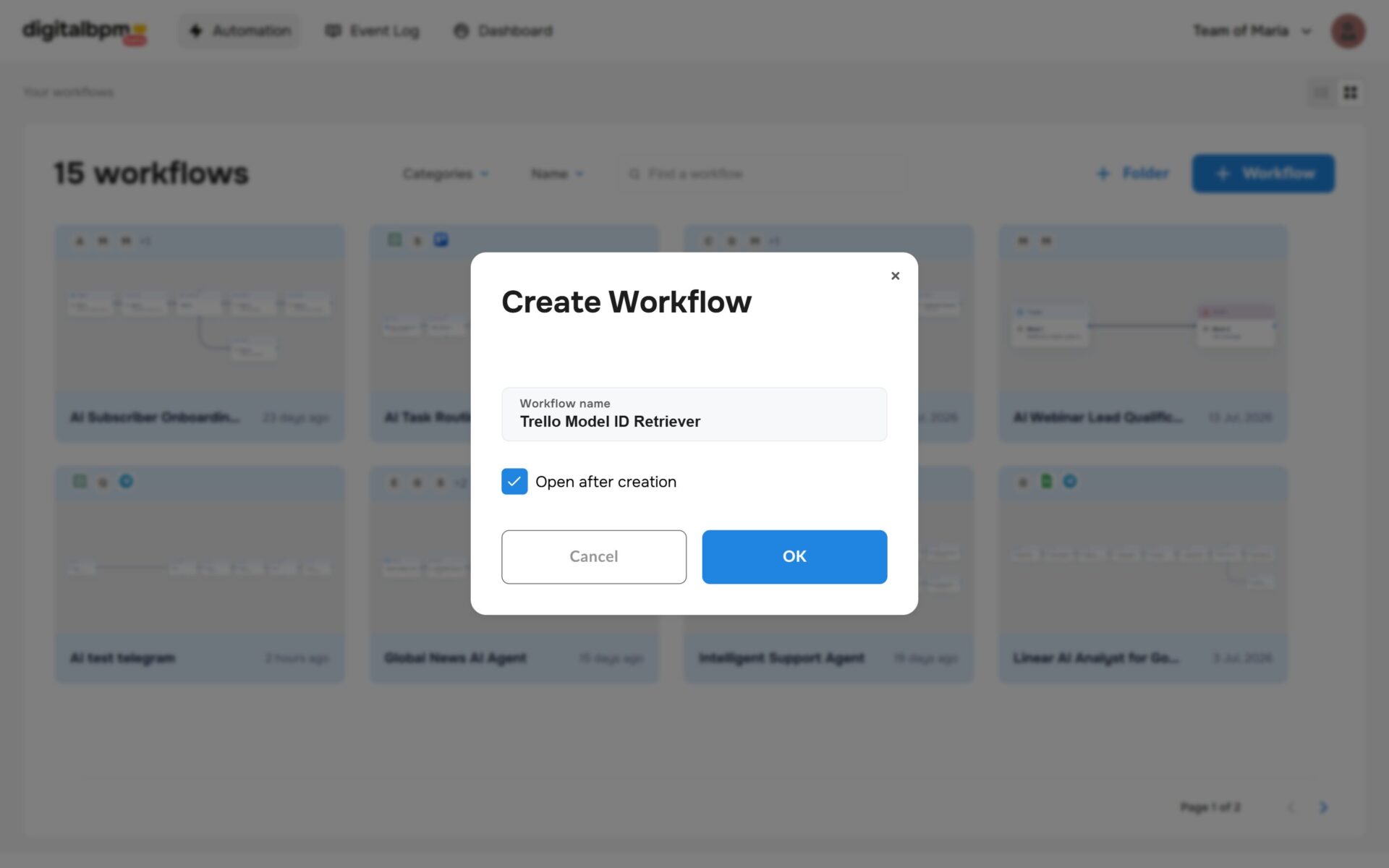
1. The first thing you need to do is to sign in to your DigitalBPM account and click on the “+ Workflow” button on the “Automation” page. Next, you need to enter a name for your workflow, for example, “Trello Model ID Retriever” and click “OK“.
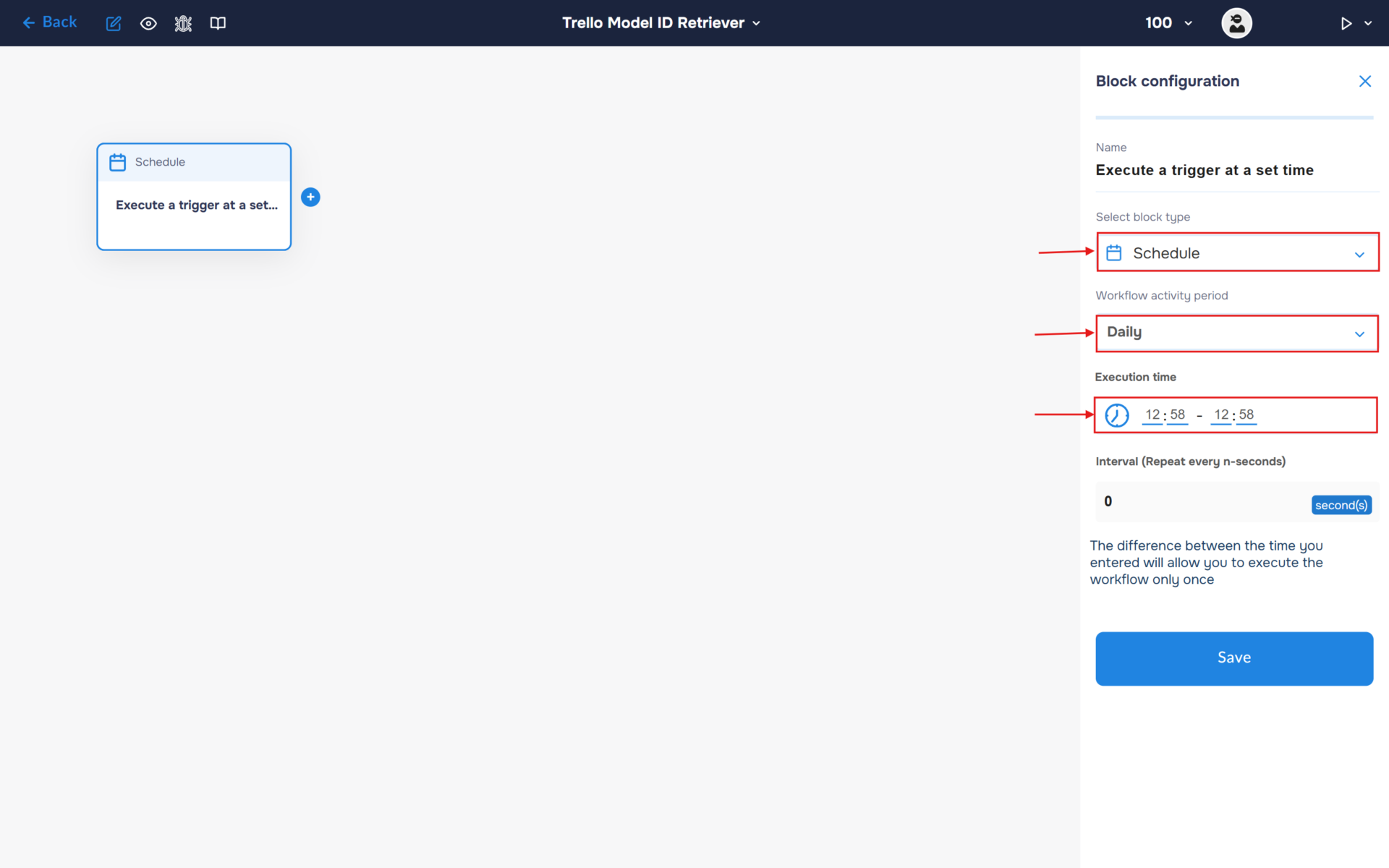
2. Add the first block and select the “Schedule” block type.
Set the “Workflow activity period” to “Daily”. Then configure the “Execution time” to the nearest upcoming time so the workflow runs within the next few minutes. This allows you to quickly retrieve your Trello Model ID without waiting for the next scheduled execution.
Step 2: Retrieve the Trello Model ID
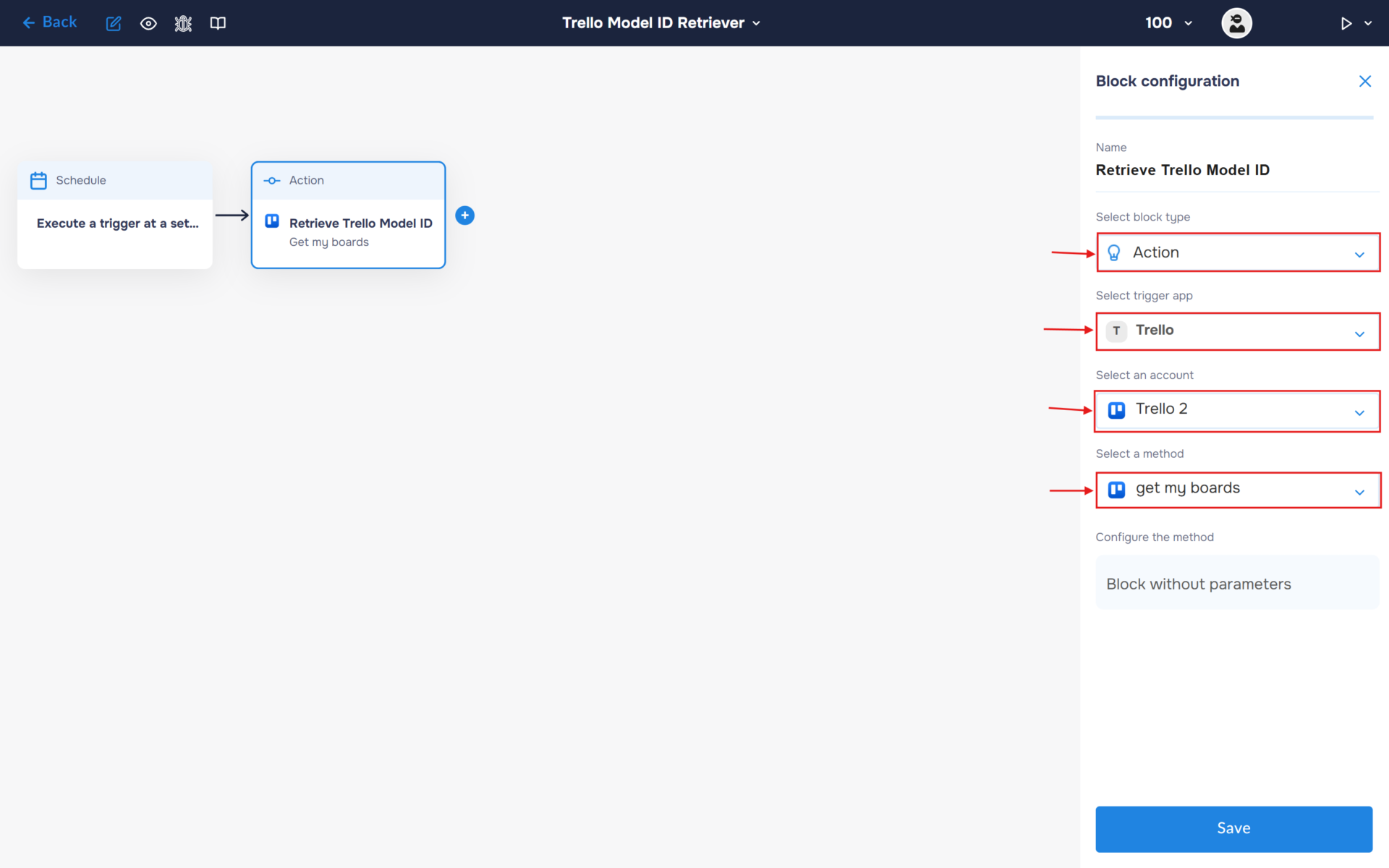
To retrieve your Trello Model ID, the workflow first requests the list of boards available in your Trello account. Each board includes its unique Model ID, which can then be copied and used when configuring other Trello automations.
- In the “Block Configuration“ panel, click on the “Select block type“ field and select the “Action” type.
- Next, you need to add Trello service by clicking on the field “Select trigger app“; find and select Trello.
- To connect to Trello choose an account and select it.
- The next step is to select a method, so click on the “Select a method“. Find and select the “get my boards” method.
Step 3: Send the Model ID to Your Telegram Chat
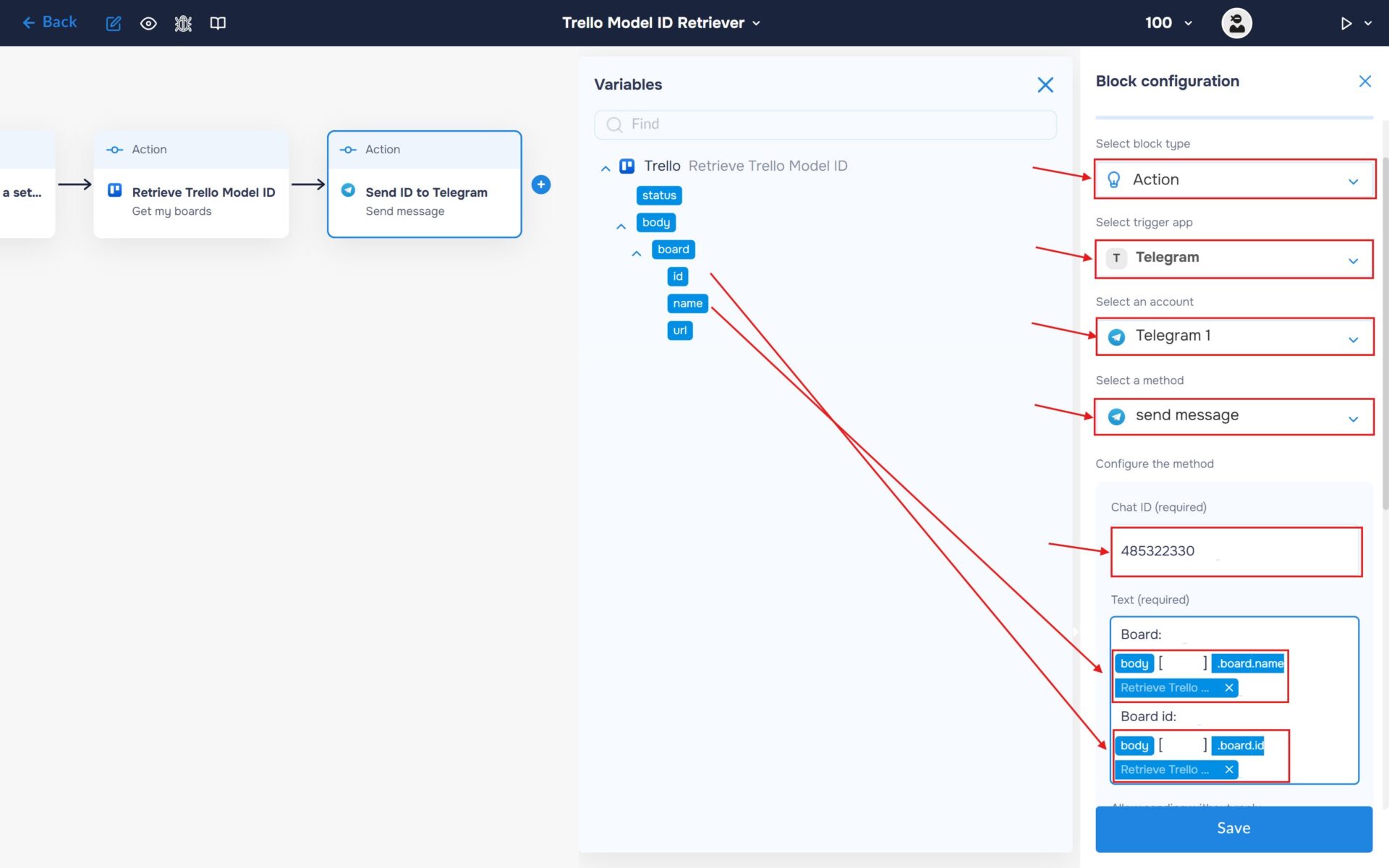
The final step sends the retrieved Trello Model ID directly to your Telegram chat, allowing you to quickly copy it and use it when configuring other Trello actions that require a Model ID.
💡Pro Tip: Alternatively, you can skip the Telegram step entirely and retrieve the Model ID directly from the workflow execution logs after the “Get My Boards” action has completed. This approach is useful if you only need to inspect the returned data without sending it to a messaging platform.
- Select the block type as “Action” and the service as “Telegram“.
- Choose an account and select it. If you haven’t created a bot yet, follow our guide — How to Register a Chatbot in Telegram.
- Find and select the “send message” method.
- To obtain your ChatId, you can use the Telegram bot @id_bot.
- In the “Text” field, insert the Name and Model ID returned by the Trello “Get My Boards” action. When the workflow runs, this value will be sent directly to your Telegram chat, where you can easily copy it for use in other Trello automations.
Step 4: Clean Up (Turn Off the Workflow)
Since you set the trigger to run “Daily,” this workflow will continue to execute every day. Once you have successfully retrieved and copied your Trello Model ID, remember to return to the Automation page and Stop or Delete this workflow to prevent unnecessary executions.