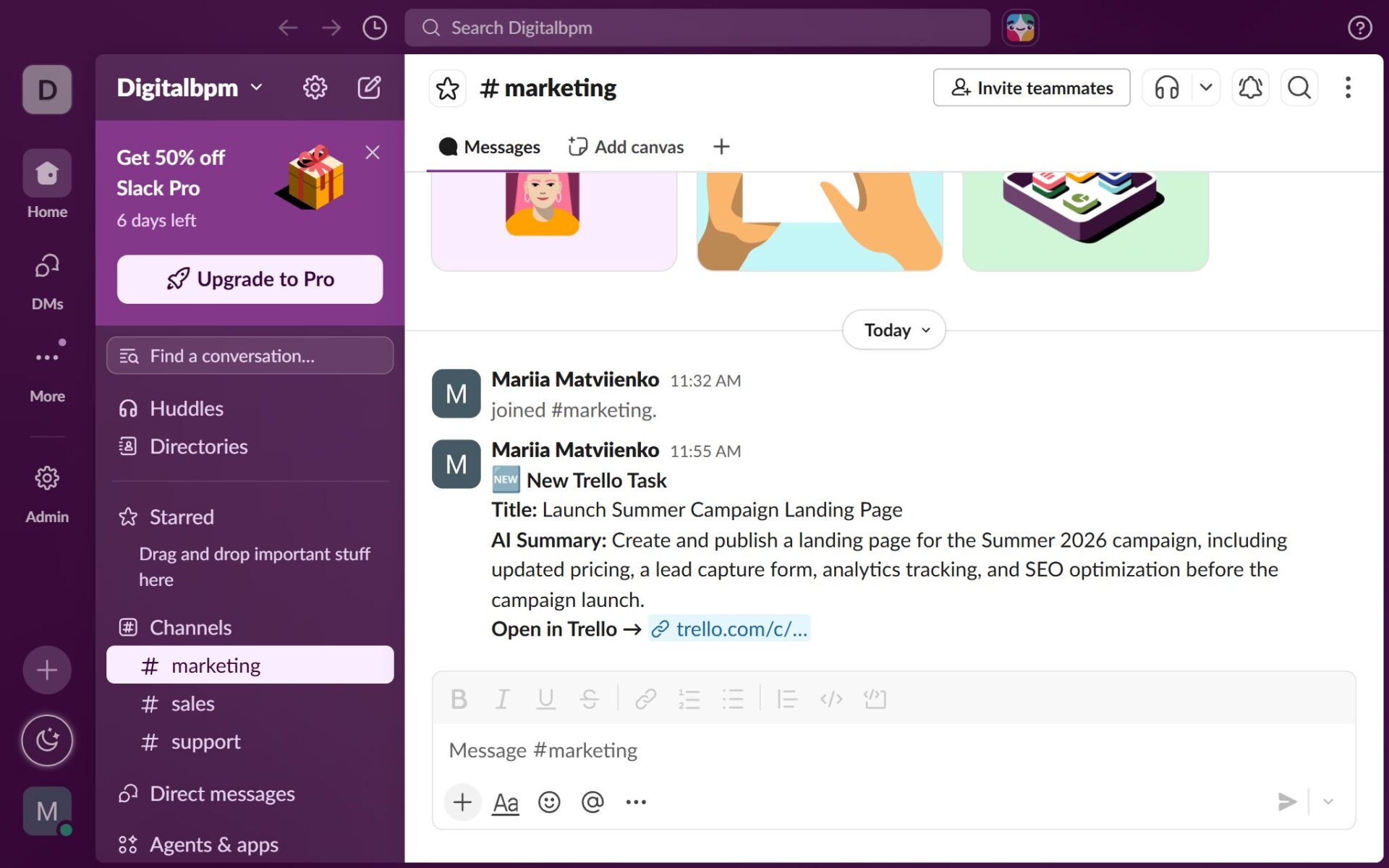


About This Guide
This guide provides step-by-step instructions for building an AI-powered Trello to Slack automation workflow using the DigitalBPM platform, Trello, ChatGPT, and Slack.
Instead of manually reviewing new Trello cards or sending every notification to the same Slack channel, you will create a workflow that:
- Detects newly created Trello cards in real time
- Uses ChatGPT to generate a concise executive summary for each task
- Automatically classifies every card by department
- Routes notifications to the appropriate Slack channel
- Provides each team with the context needed to start working immediately
- Automates Trello card triage using AI and reduces manual decision-making
By the end of this guide, you will have a fully functional AI-powered task routing assistant that delivers intelligent, department-specific Slack notifications and streamlines team communication.
Who Is This Guide For?
This guide is designed for project managers, operations leads, and automation specialists who coordinate work across multiple departments and want to streamline team communication.
It is especially useful if you are looking to:
- Eliminate manual task triage: Automatically categorize and route incoming requests without human intervention.
- Reduce Slack noise: Prevent notification fatigue by sending updates only to the channels and teams that actually need them.
- Leverage AI in daily workflows: Use ChatGPT to quickly summarize complex tasks so your team can understand them at a glance.
- Scale operations: Optimize cross-department collaboration in growing agencies, remote teams, or distributed organizations.
Before building this workflow, ensure you have the following ready:
- A DigitalBPM account
- A Trello account
- A ChatGPT account with API access
- A Slack account and channel
If you’re ready, let’s get started!
Step 1: Create a New Workflow and Trigger Block
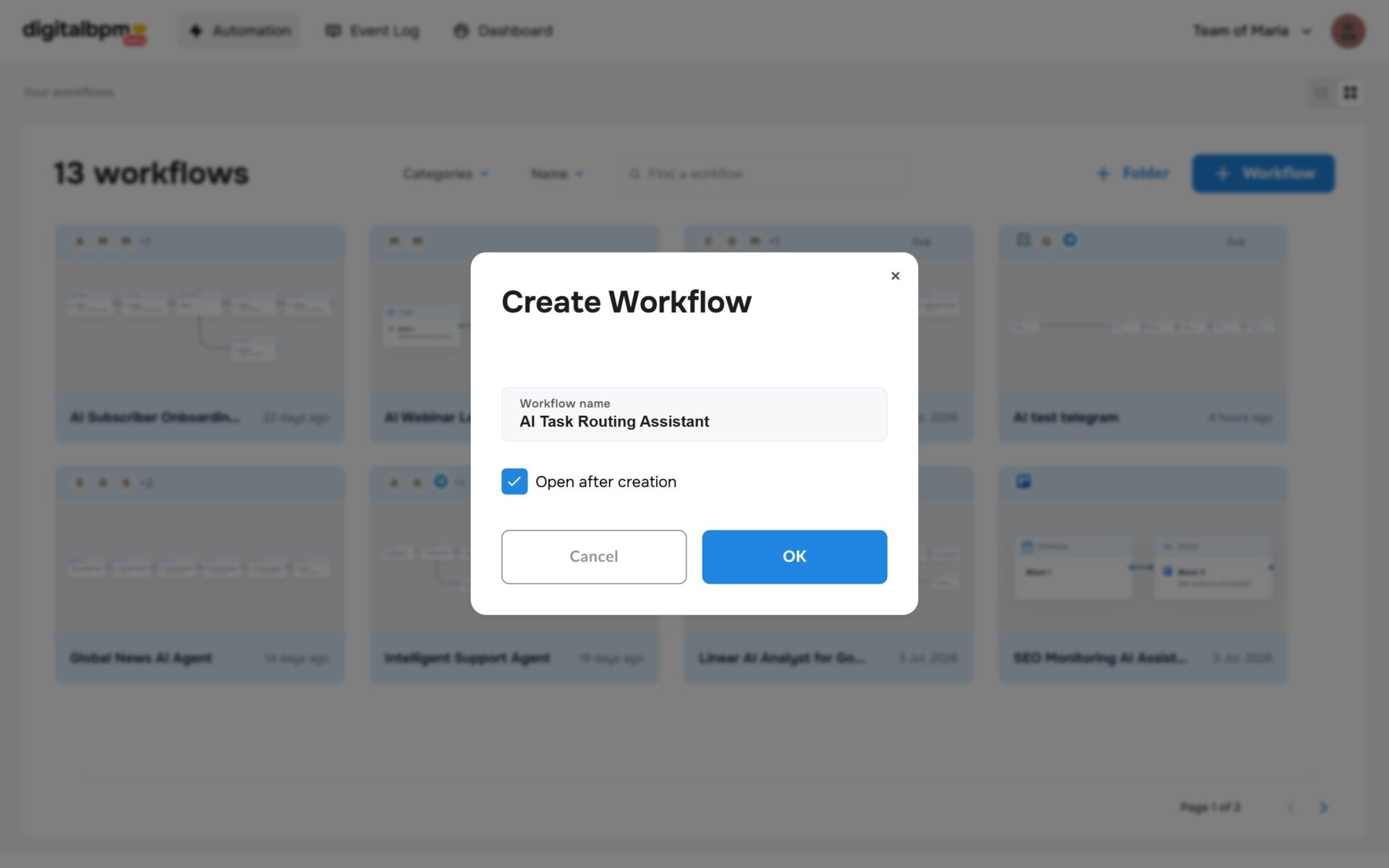
1. The first thing you need to do is to sign in to your DigitalBPM account and click on the “+ Workflow” button on the “Automation” page. Next, you need to enter a name for your workflow, for example, “AI Task Routing Assistant” and click “OK“.
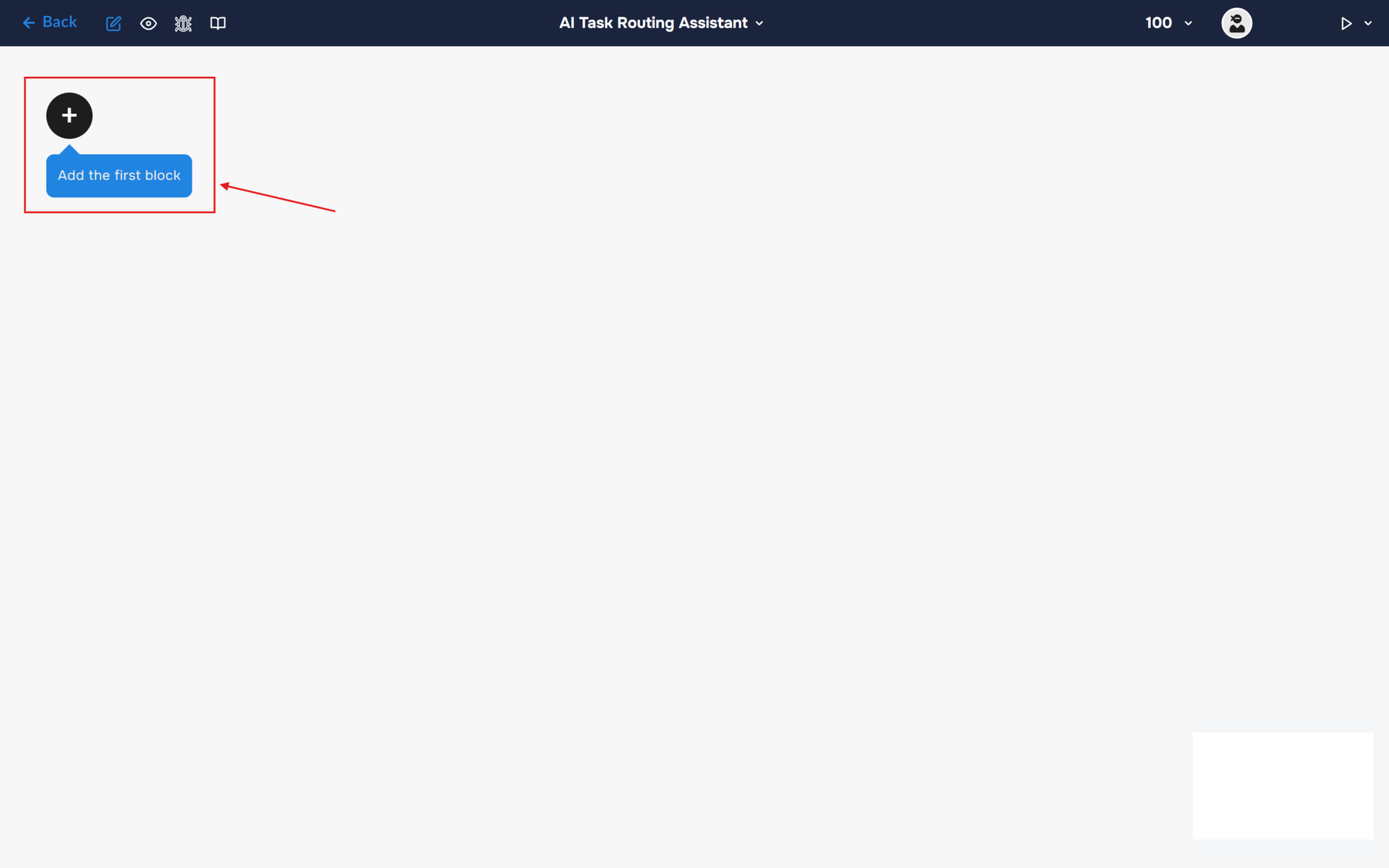
2. After confirming the creation of a workflow, its builder opens. To add the first block, click the “+ Add first block” button.
3. Next, you need to configure the first block. This block is responsible for triggering the workflow on a set trigger.
- In the “Block Configuration“ panel, click on the “Select block type“ field and select the “Trigger” type.
- Next, you need to add Trello service by clicking on the field “Select trigger app“; find and select “Trello“.
- To connect to service, you need to create an authorisation. Click on the “Sign in“ button in the “Select an account“ section.
- After clicking the button, a window for creating a new authorization will open. Enter a name for the authorization, provide the required credentials, and save the connection.
- If the authorization is successful, the created authorization will appear in the “Select an account” field. You need to select this authorization to configure the next steps of the block.
- The next step is to select an event, so click on the “Select an event“. Find and select “webhook create”.
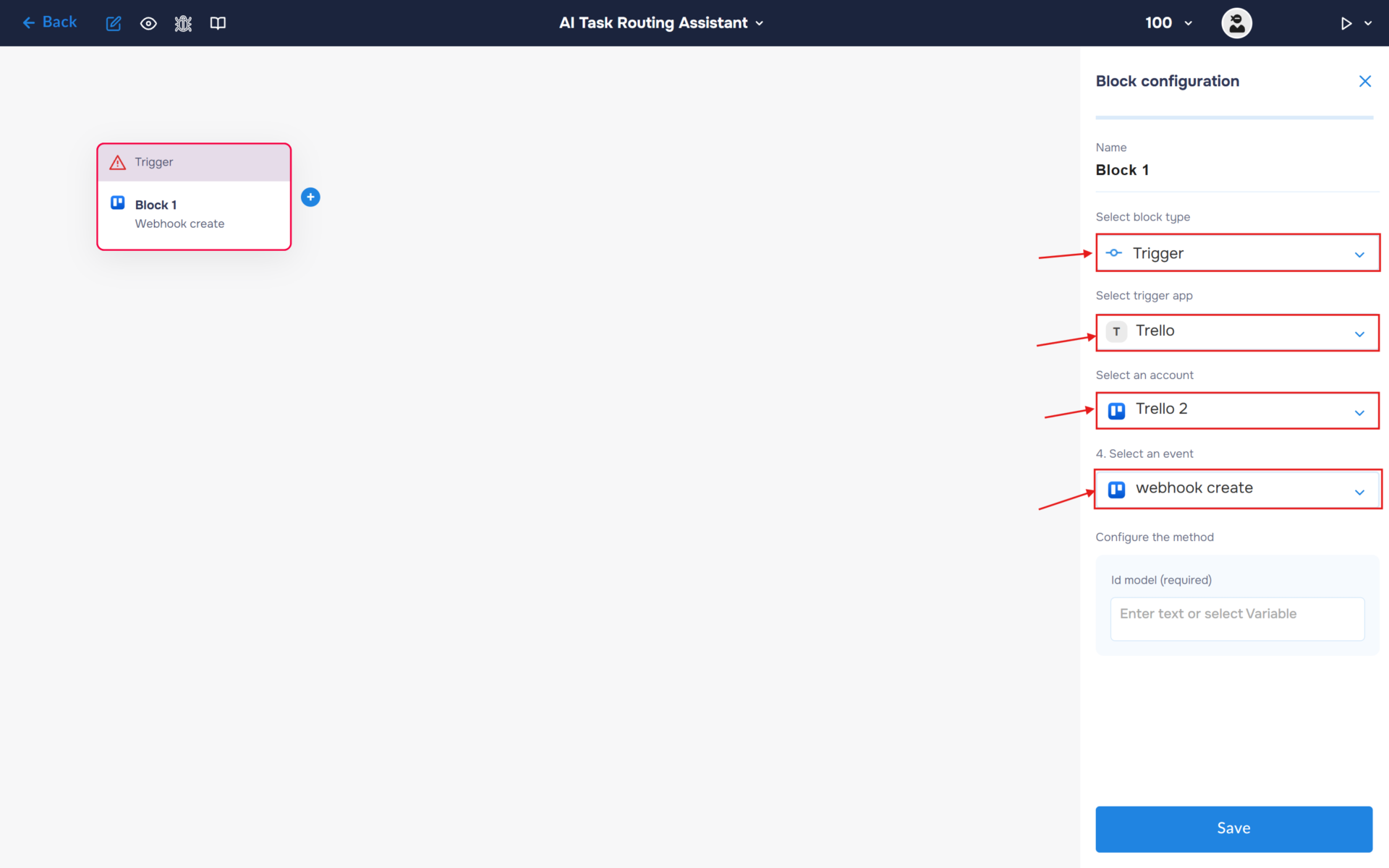
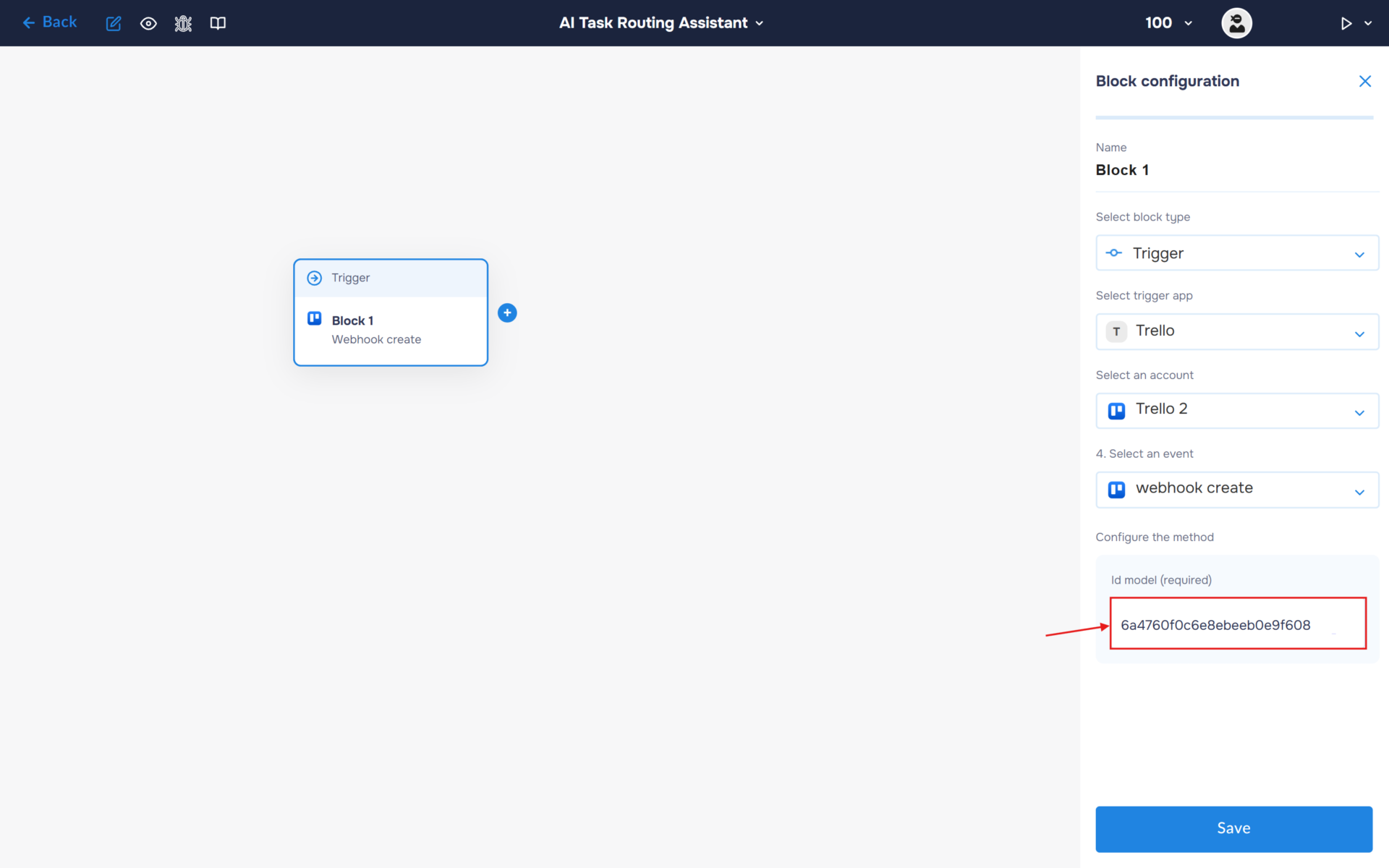
4. Fill in the “Model ID” field. If you don’t know how to obtain it, follow our guide on finding the Trello Model ID, then return to this step and paste the value into the field.
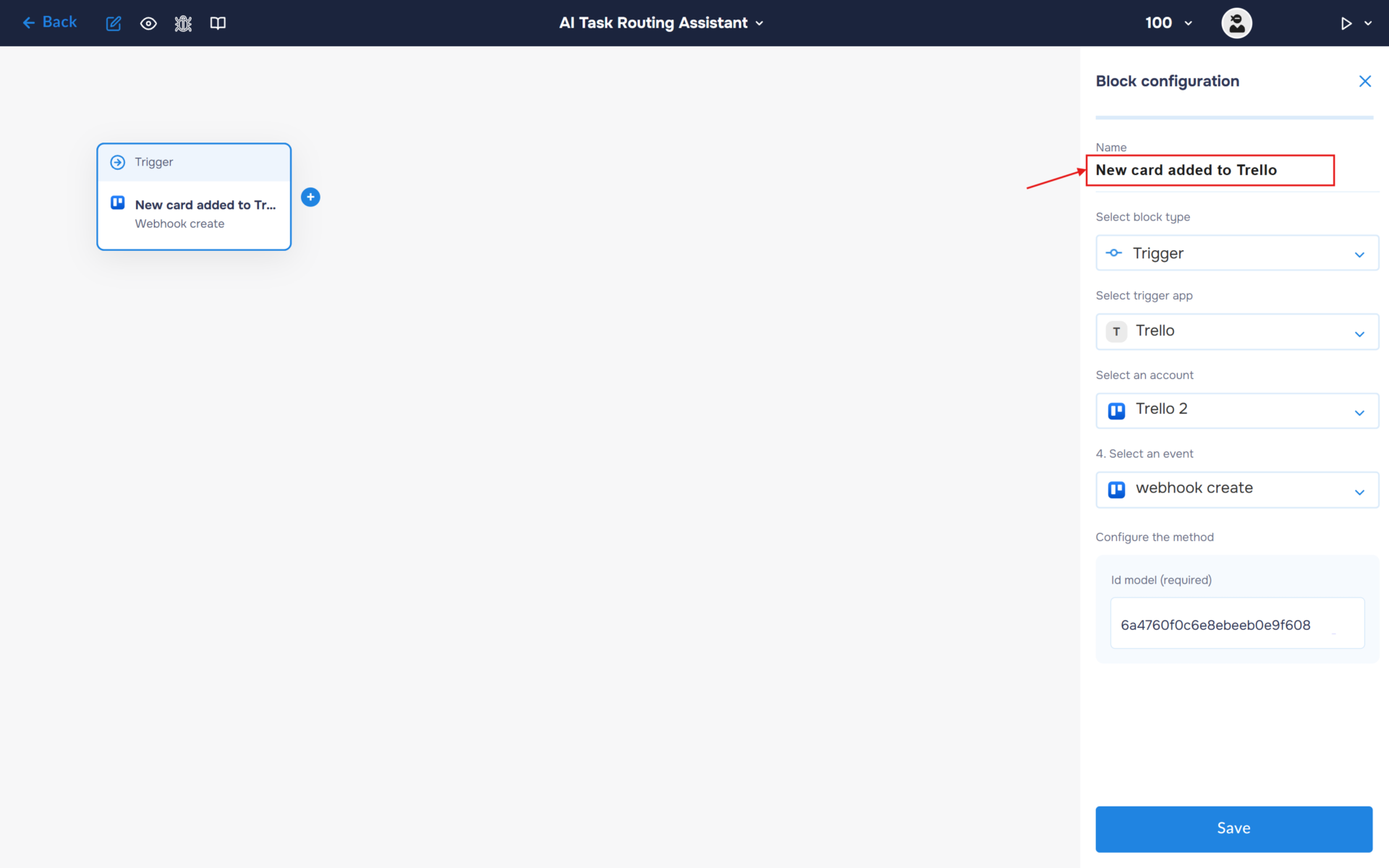
5. Click on the “Name” field and fill in a clear name for what happens in the block, for example, “New card added to Trello”. With this step, you can quickly find out what the block is for.
Step 2: Filter Card Creation Events
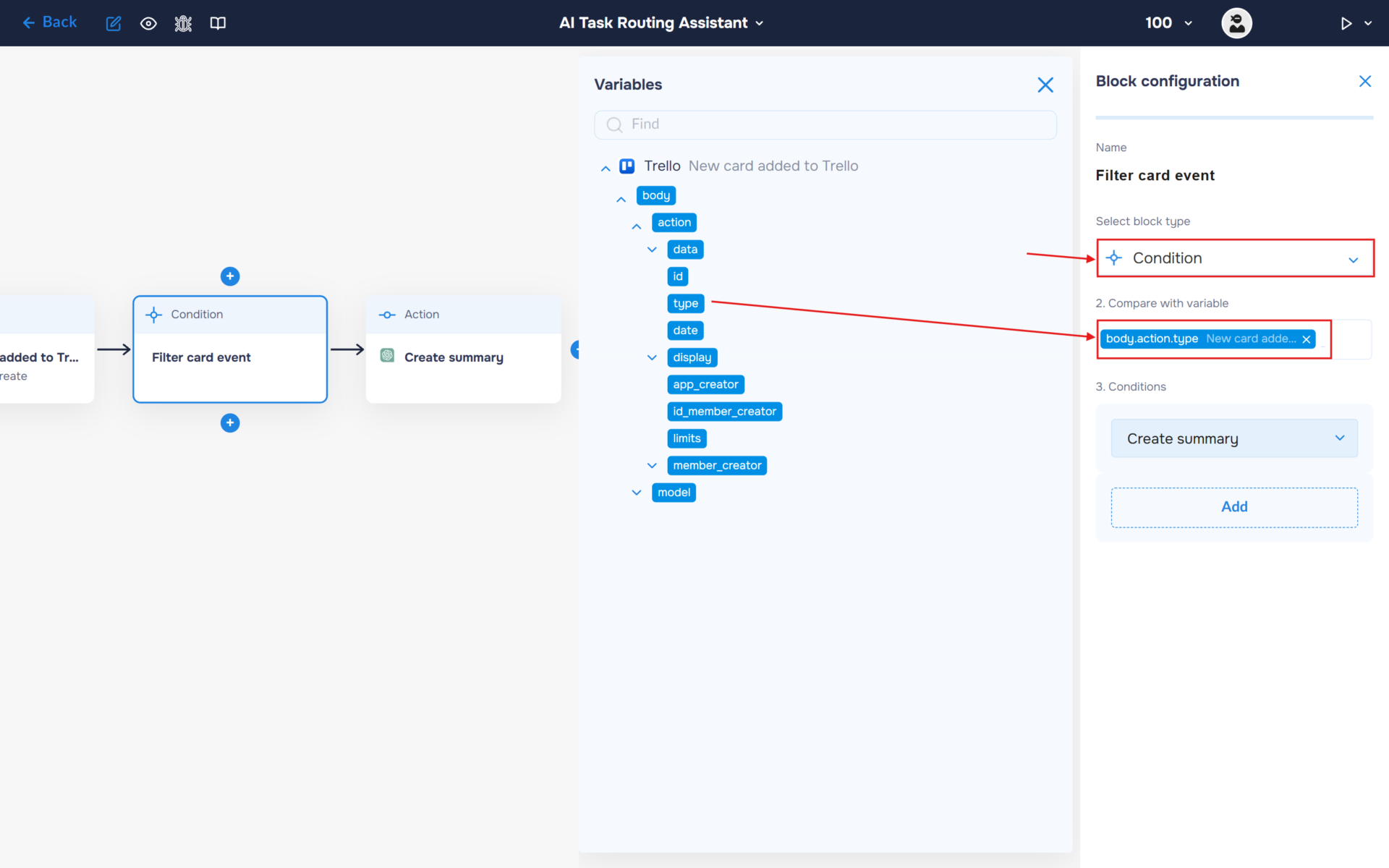
1. Now we need to tell the workflow when it should continue processing Trello events. We will use a router (“Condition” block) to ensure the automation is triggered only when a new card is created, preventing unnecessary processing of other Trello events.
Add the “Condition” block to determine whether the incoming event corresponds to a card creation event.
In the “Compare with variable” field, insert the event type returned by the Trello trigger.
2. Add a “Create summary” block — Step 3. Once the event is confirmed as a newly created Trello card, the workflow passes the task information to ChatGPT. The AI analyzes the card and generates a concise executive summary, allowing team members to quickly understand the task without opening the card.
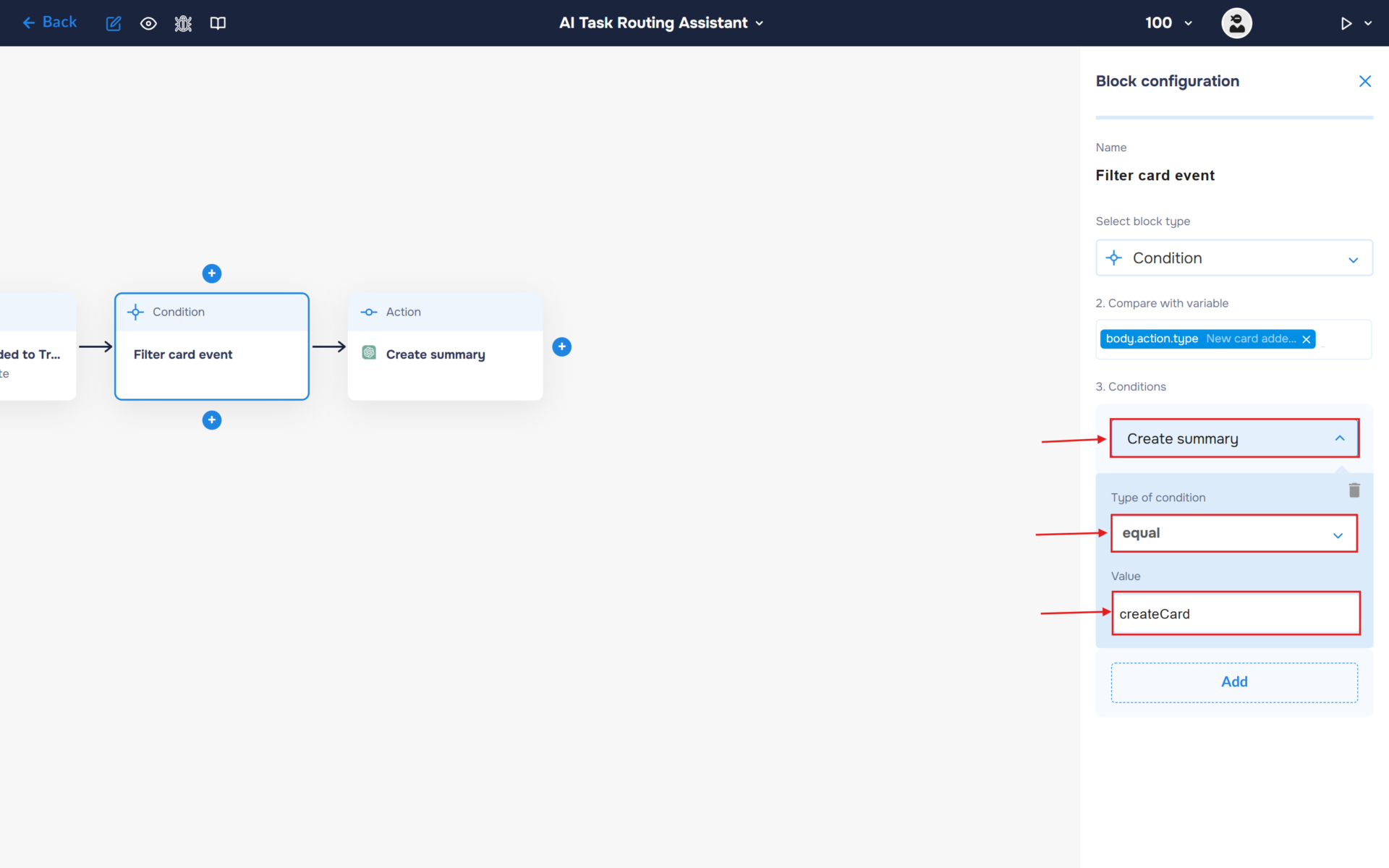
In the “Conditions” section, expand the newly created block and configure the following values:
- Type of Condition: “equal”
- Value: “createCard”
Step 3: Integrate ChatGPT for Executive Summary Generation
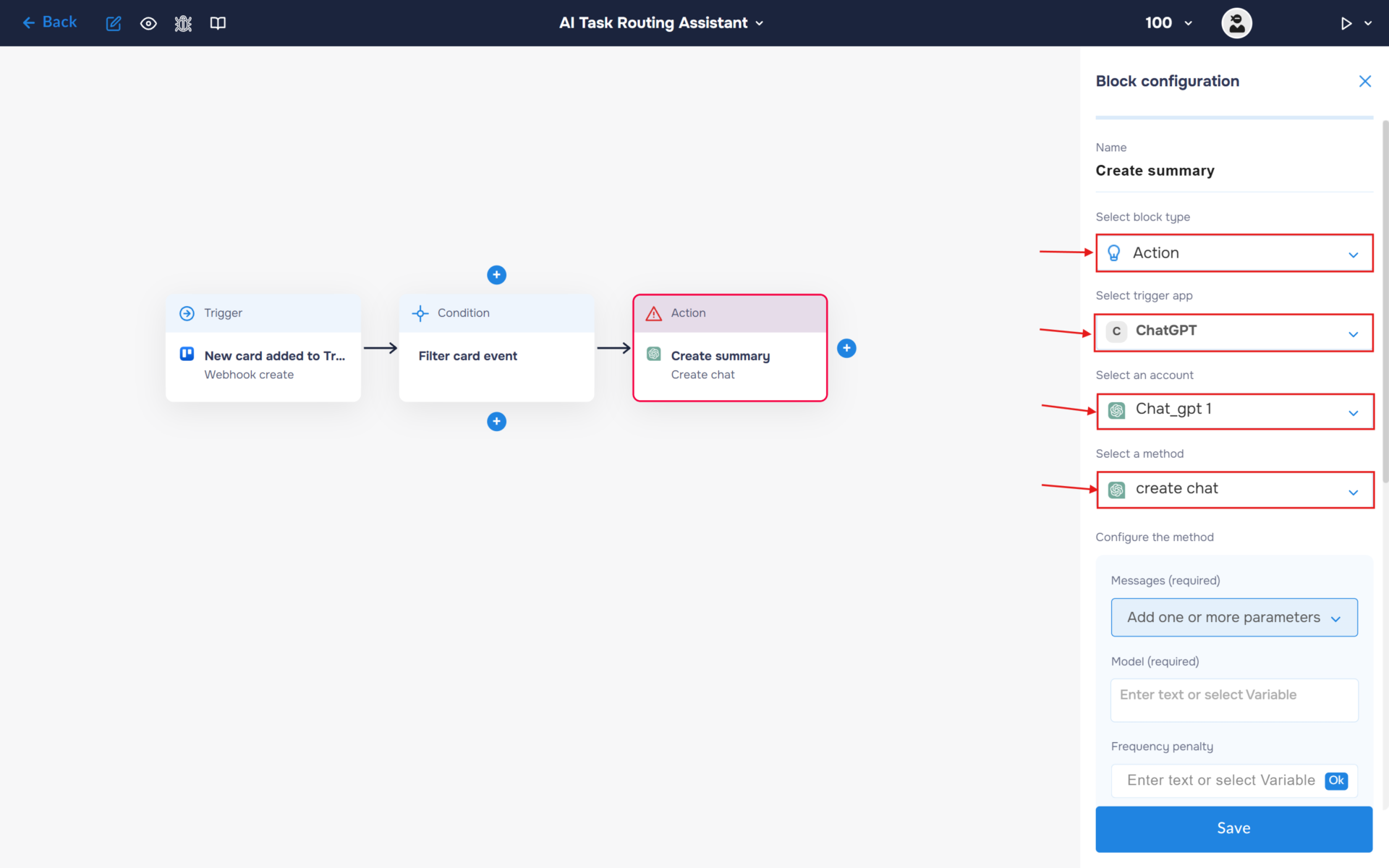
1. Connect ChatGPT to analyze each newly created Trello card and generate a concise executive summary. This summary gives team members enough context to understand the purpose of the task without opening the card, helping them prioritize work and respond more efficiently.
- In the “Block Configuration“ panel, click on the “Select block type“ field and select the “Action” type.
- Next, you need to add ChatGPT service by clicking on the field “Select trigger app“; find and select “ChatGPT“.
- To connect to ChatGPT, you need to create an authorisation. Click on the “Sign in“ button in the “Select an account“ section.
- After clicking the button, a window for creating a new ChatGPT authorization will open. Enter a name for the authorization, provide the required credentials, and save the connection.
- If the authorization is successful, the created authorization will appear in the “Select an account” field. You need to select this authorization to configure the next steps of the block.
- The next step is to select a method, so click on the “Select a method“. Find and select the “create chat” method.
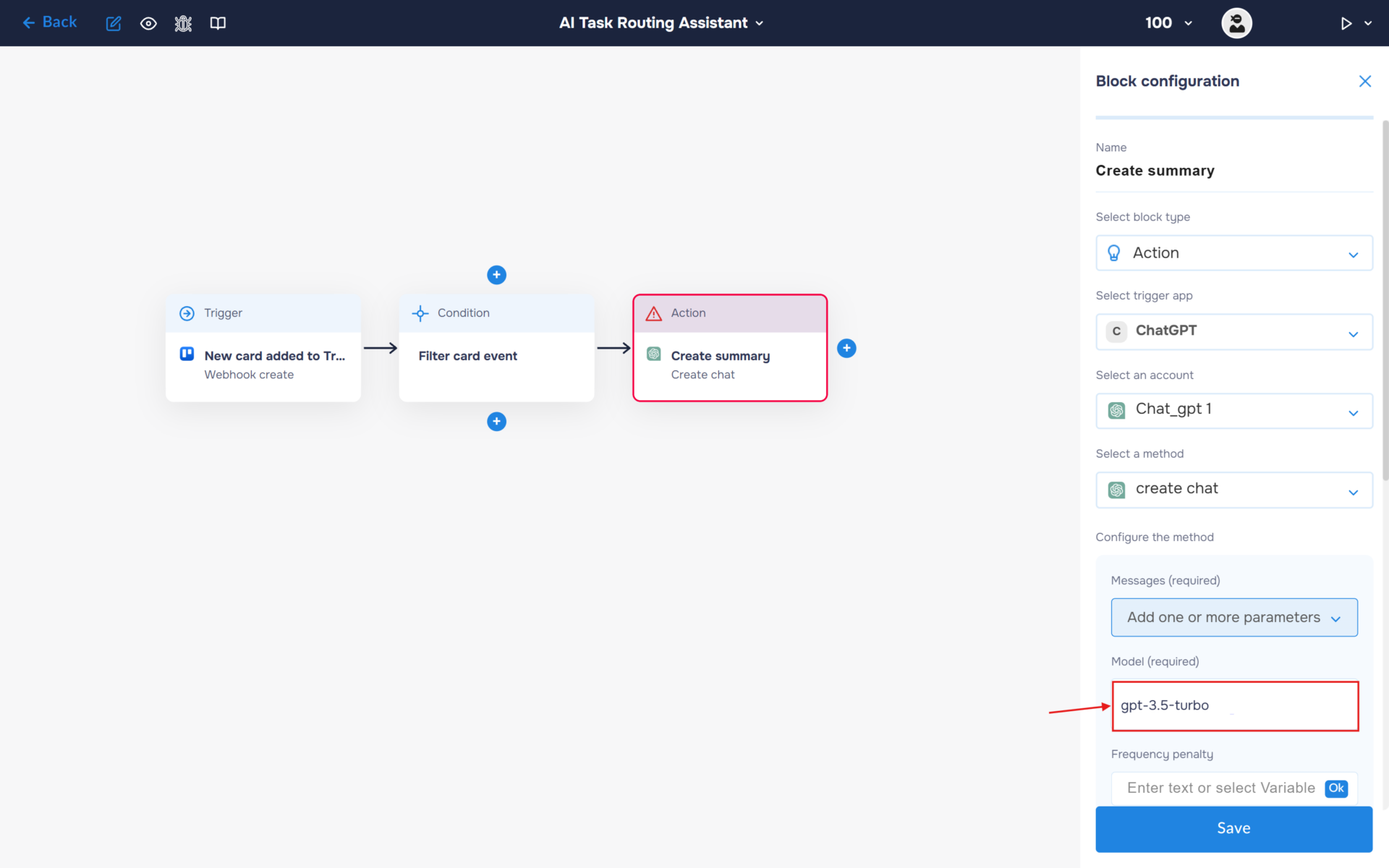
2. Specify the model name in the corresponding field (e.g., gpt-3.5-turbo).
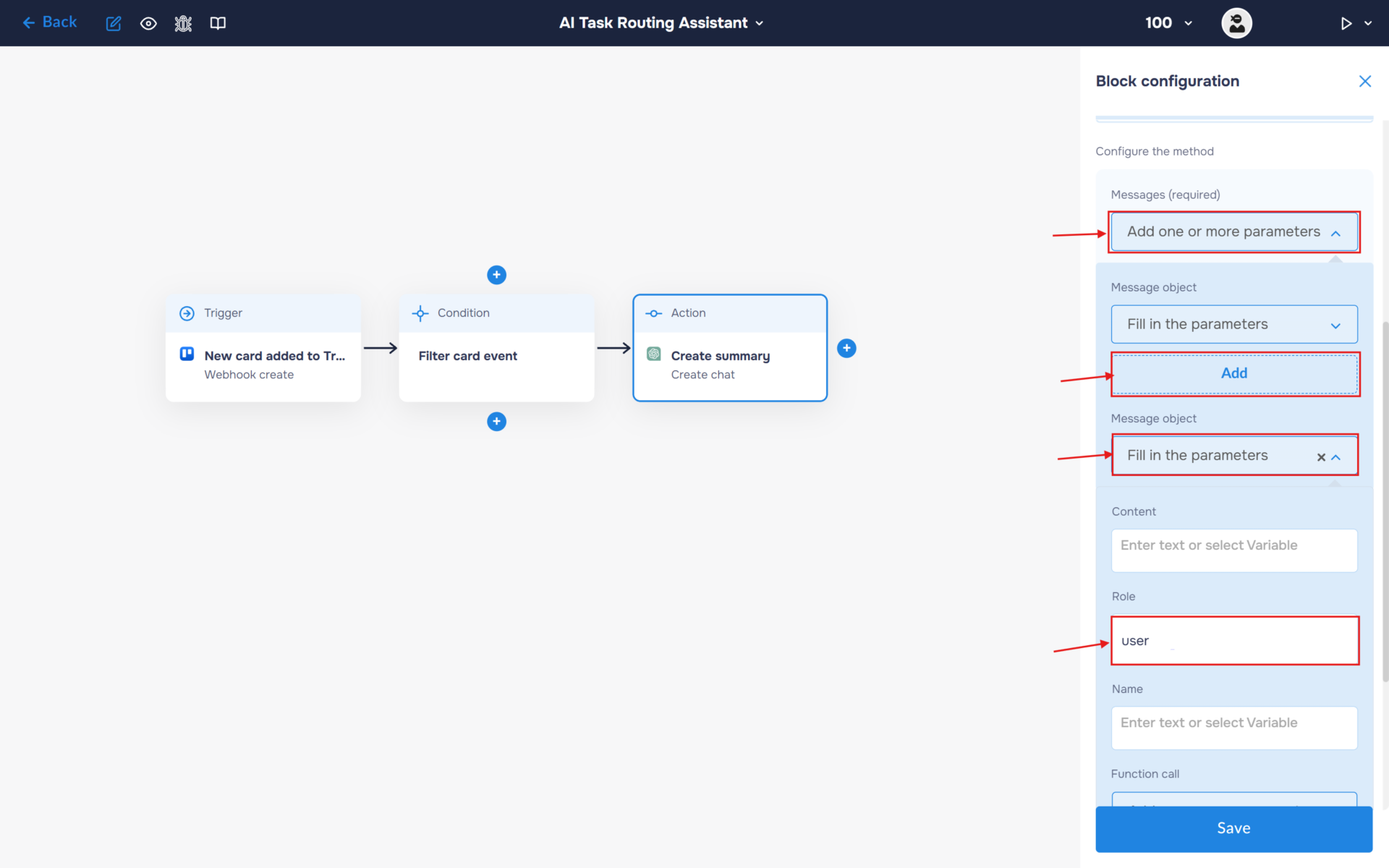
3. In the Messages section, select “Add one or more parameters”. Add a Message object and expand it. This is where you will enter the prompt that will be sent to the AI model for processing.
Fill the “Role” field with the value “user“.
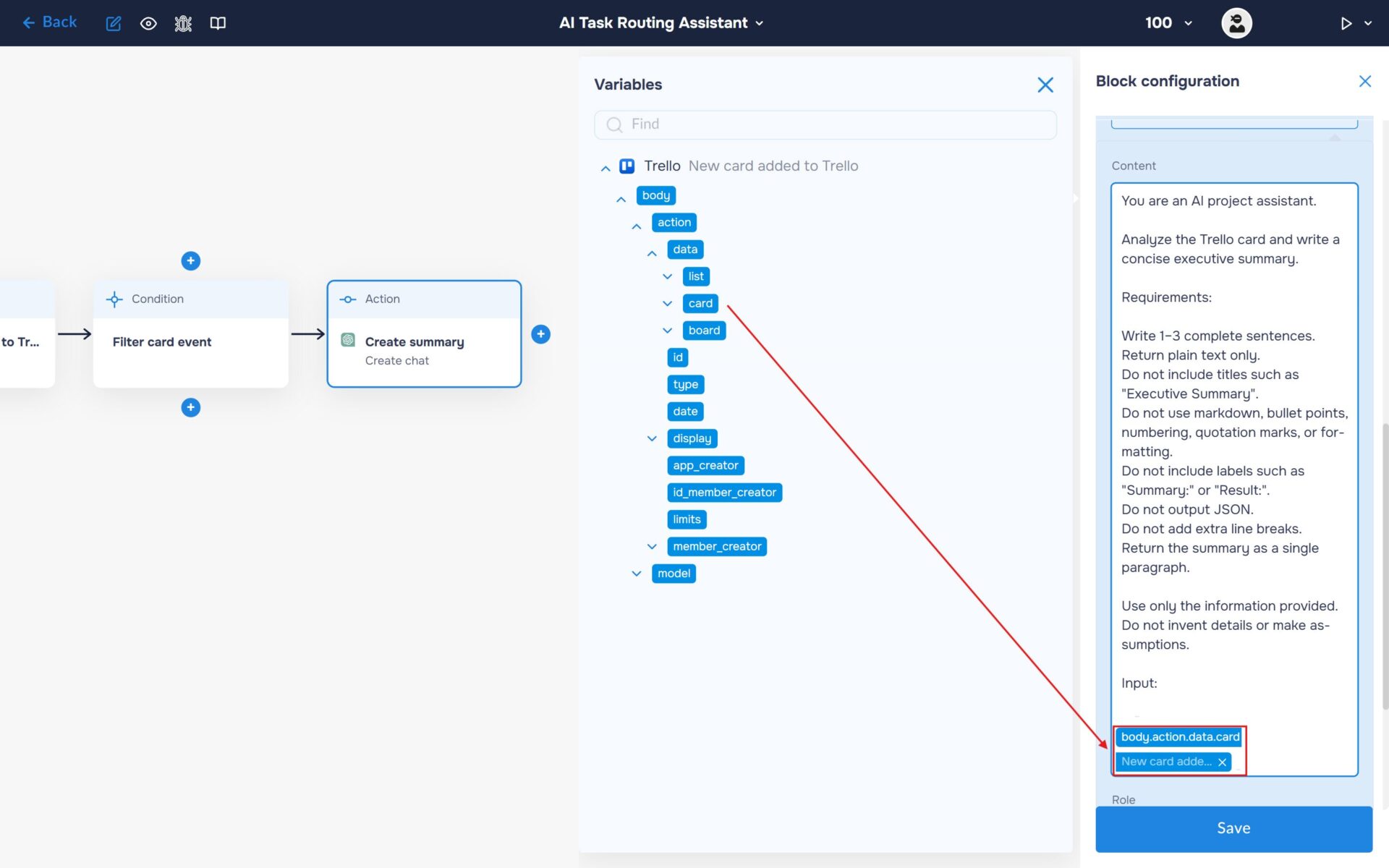
4. Fill the“ Text“ field with your prompt and insert variable “cards“ received from the Trello webhook.
🔧 Default Prompt: You are an AI project assistant.
Analyze the Trello card and write a concise executive summary.
Requirements:
Write 1–3 complete sentences.
Return plain text only.
Do not include titles such as “Executive Summary”.
Do not use markdown, bullet points, numbering, quotation marks, or formatting.
Do not include labels such as “Summary:” or “Result:”.
Do not output JSON.
Do not add extra line breaks.
Return the summary as a single paragraph.
Use only the information provided. Do not invent details or make assumptions.
Input: [CARD DATA]
Step 4: Classify Task by Department
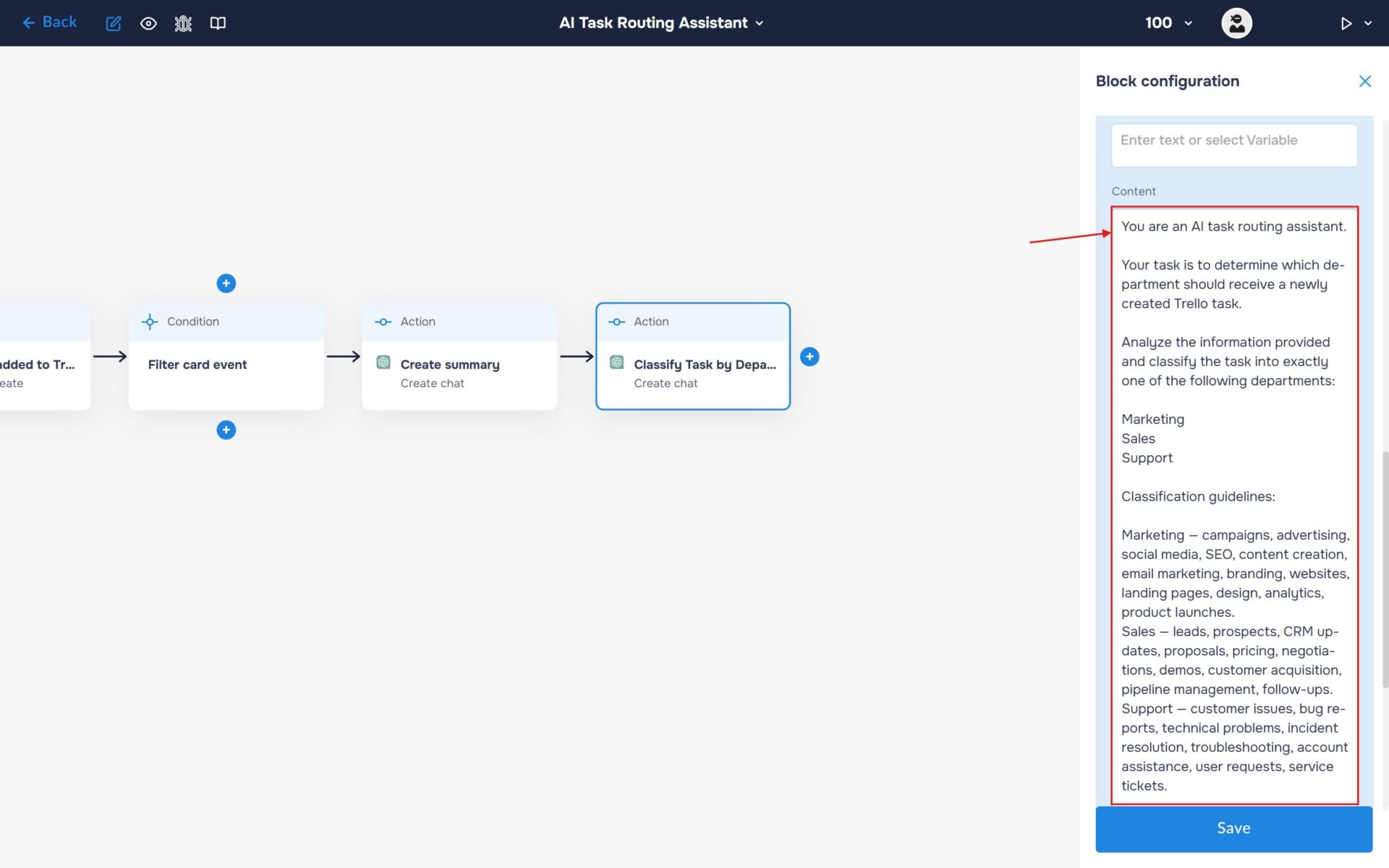
Now, add a second ChatGPT block after the executive summary block. This block will be responsible for analyzing the task and determining which department should receive the notification.
Configure the new ChatGPT block by following the same steps as in Step 3. Use the same model and settings, but replace the prompt with the one that classifies the task and identifies the appropriate department for routing.
🔧 Default Prompt: You are an AI task routing assistant.
Your task is to determine which department should receive a newly created Trello task.
Analyze the information provided and classify the task into exactly one of the following departments:
Marketing
Sales
Support
Classification guidelines:
Marketing — campaigns, advertising, social media, SEO, content creation, email marketing, branding, websites, landing pages, design, analytics, product launches.
Sales — leads, prospects, CRM updates, proposals, pricing, negotiations, demos, customer acquisition, pipeline management, follow-ups.
Support — customer issues, bug reports, technical problems, incident resolution, troubleshooting, account assistance, user requests, service tickets.
Return only one of these values:
Marketing
Sales
Support
Do not include explanations, punctuation, markdown, or additional text.
Input: [CARD DATA]
Step 5: Route Tasks to the Appropriate Department
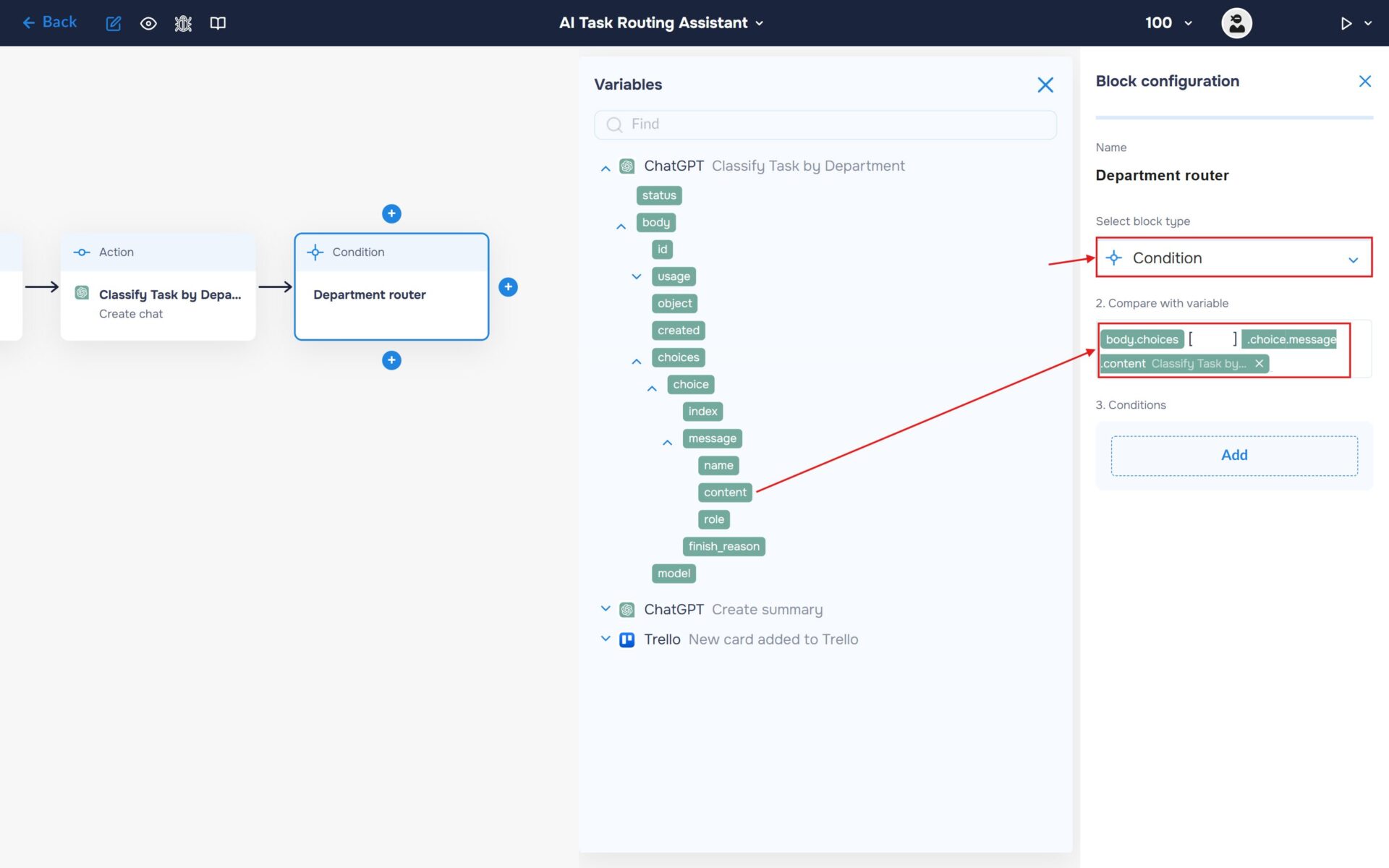
1. Now we need to tell the workflow how to route notifications based on the department identified by ChatGPT. We will use a router (“Condition” block) to split the automation into separate paths, ensuring each task is delivered to the appropriate Slack channel.
Add the “Condition” block to determine which department should receive the notification.
In the “Compare with variable” field, insert the department returned by the ChatGPT classification block.
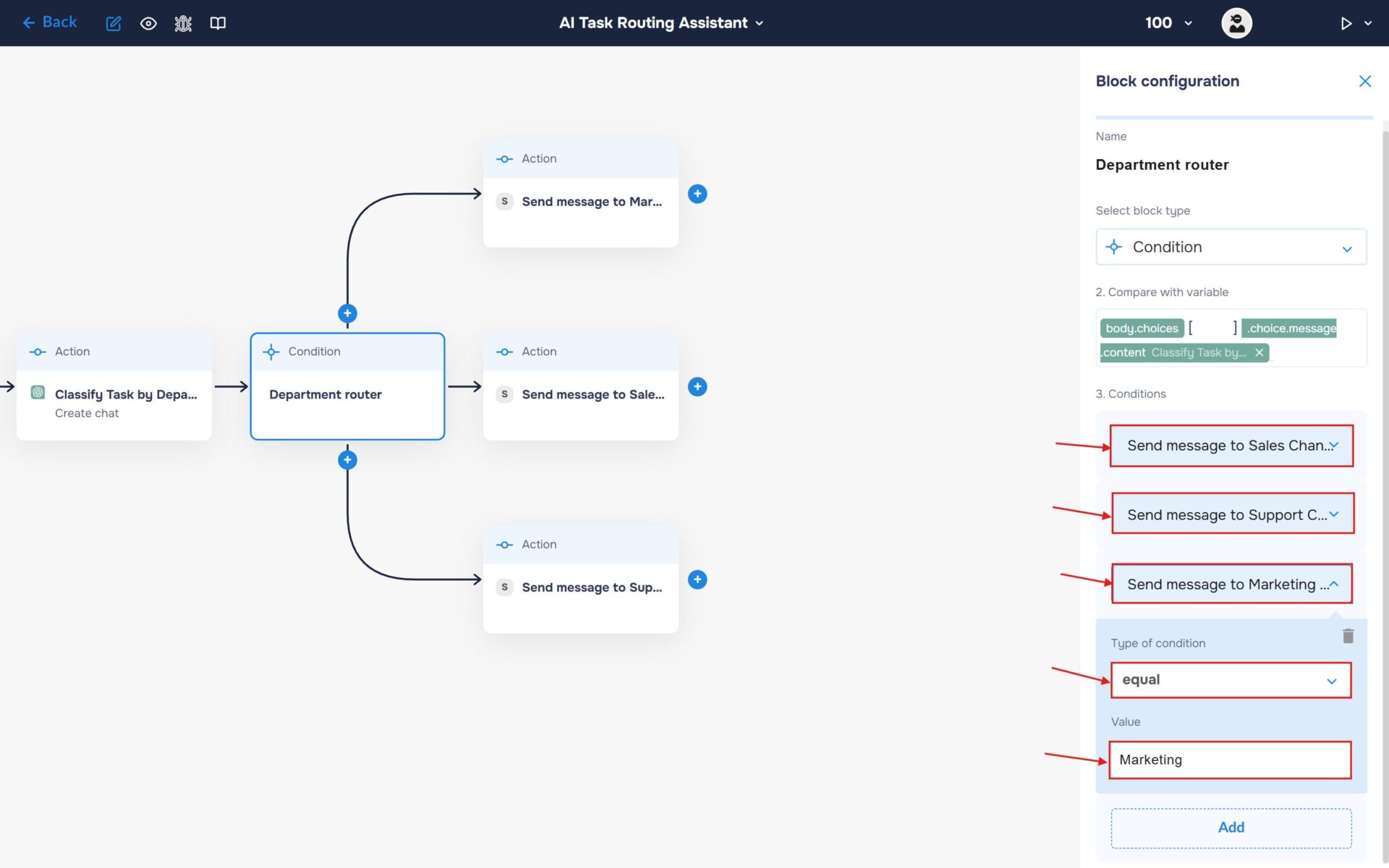
2. Create three separate blocks, each responsible for sending a notification to a different Slack channel based on the department identified by ChatGPT.
In the “Conditions” section, expand each newly created block and configure the following values:
Type of Condition: “equal”
Value: “Marketing”, “Sales”, or “Support”, depending on the corresponding branch.
Step 6: Send Department Notifications to Slack
1. Now let’s send the generated post to Slack. Select Slack from the list of available services and click the “Sign in” button.
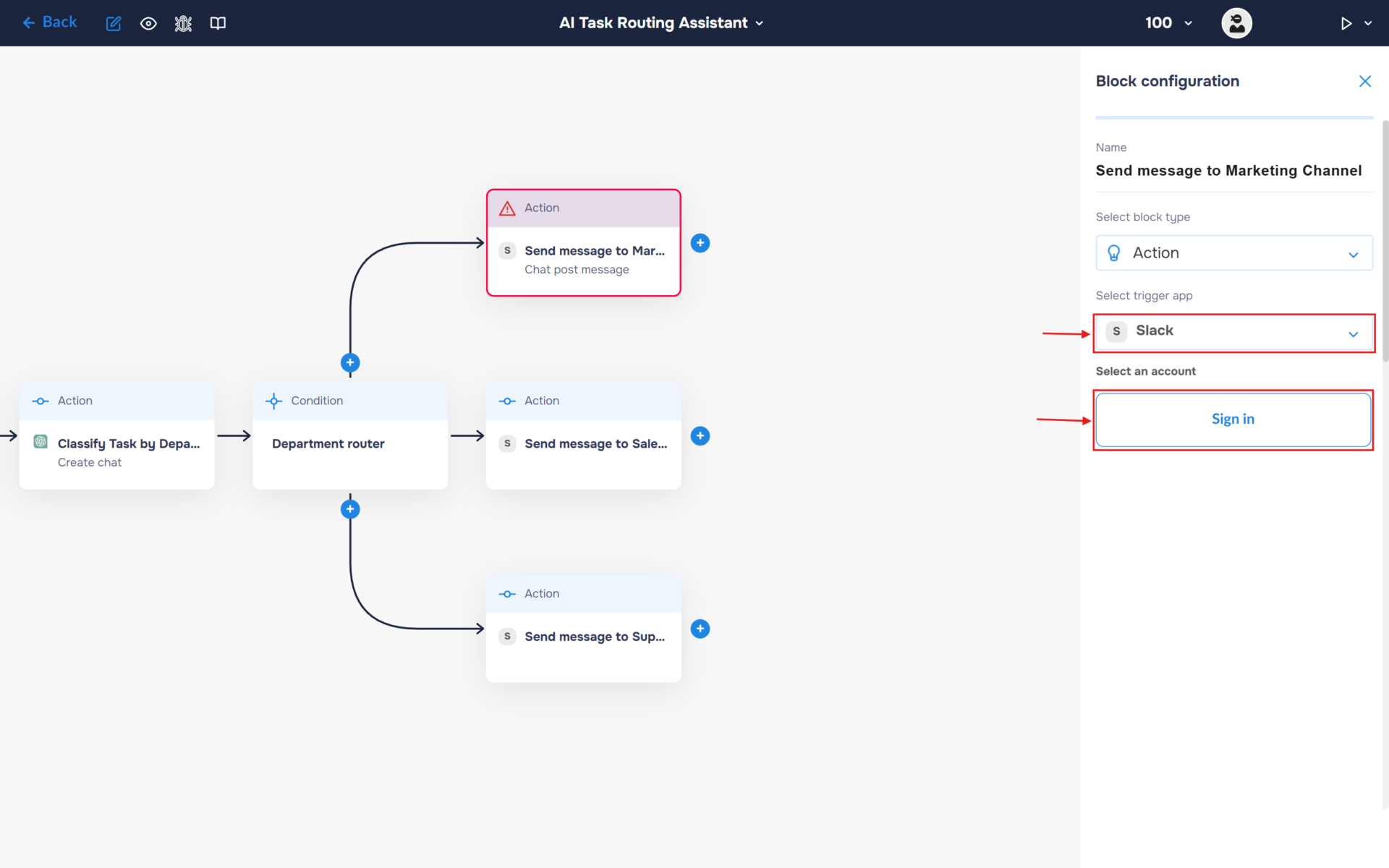
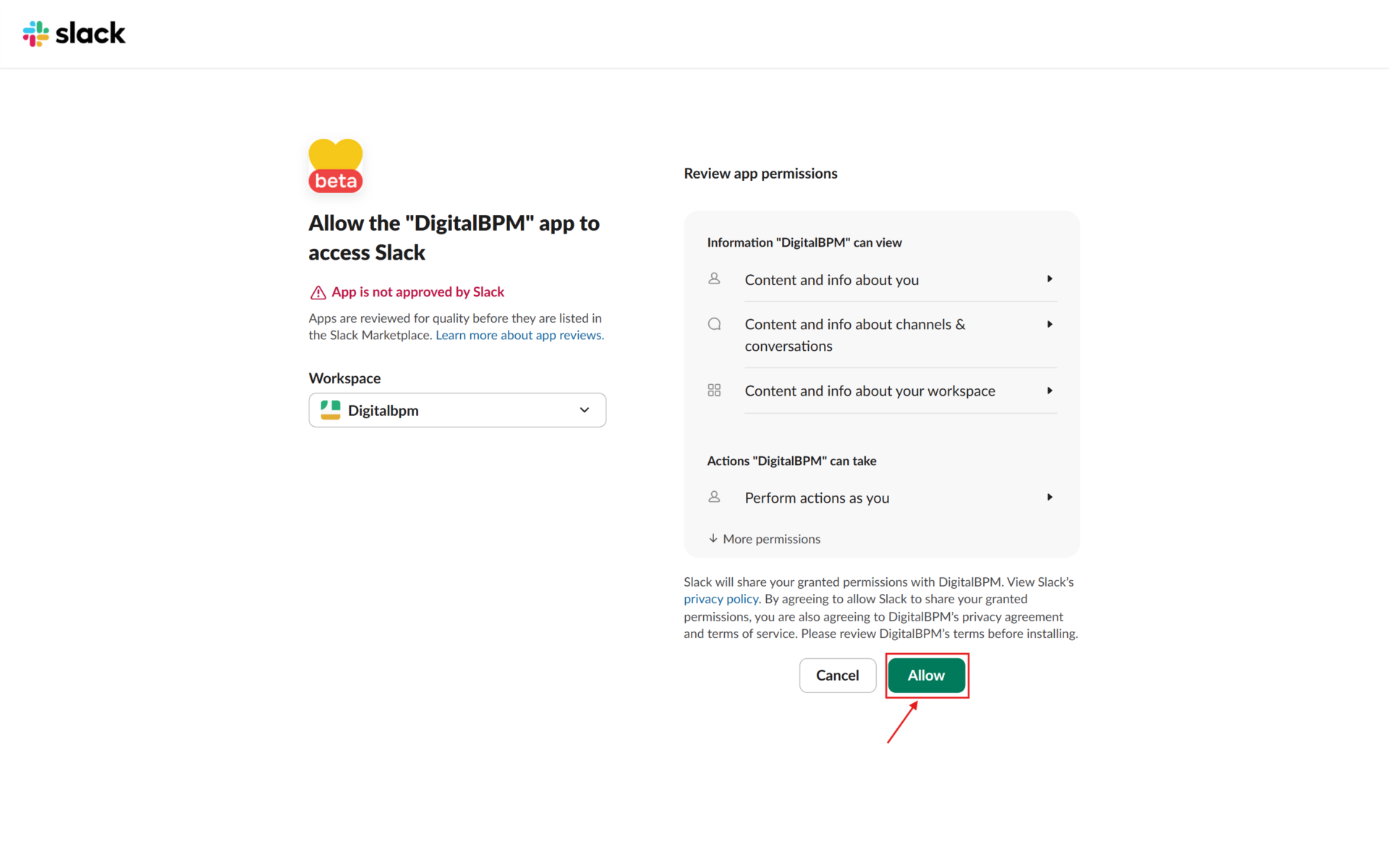
2. Sign in to your Slack account and grant DigitalBPM the required permissions to access your workspace.
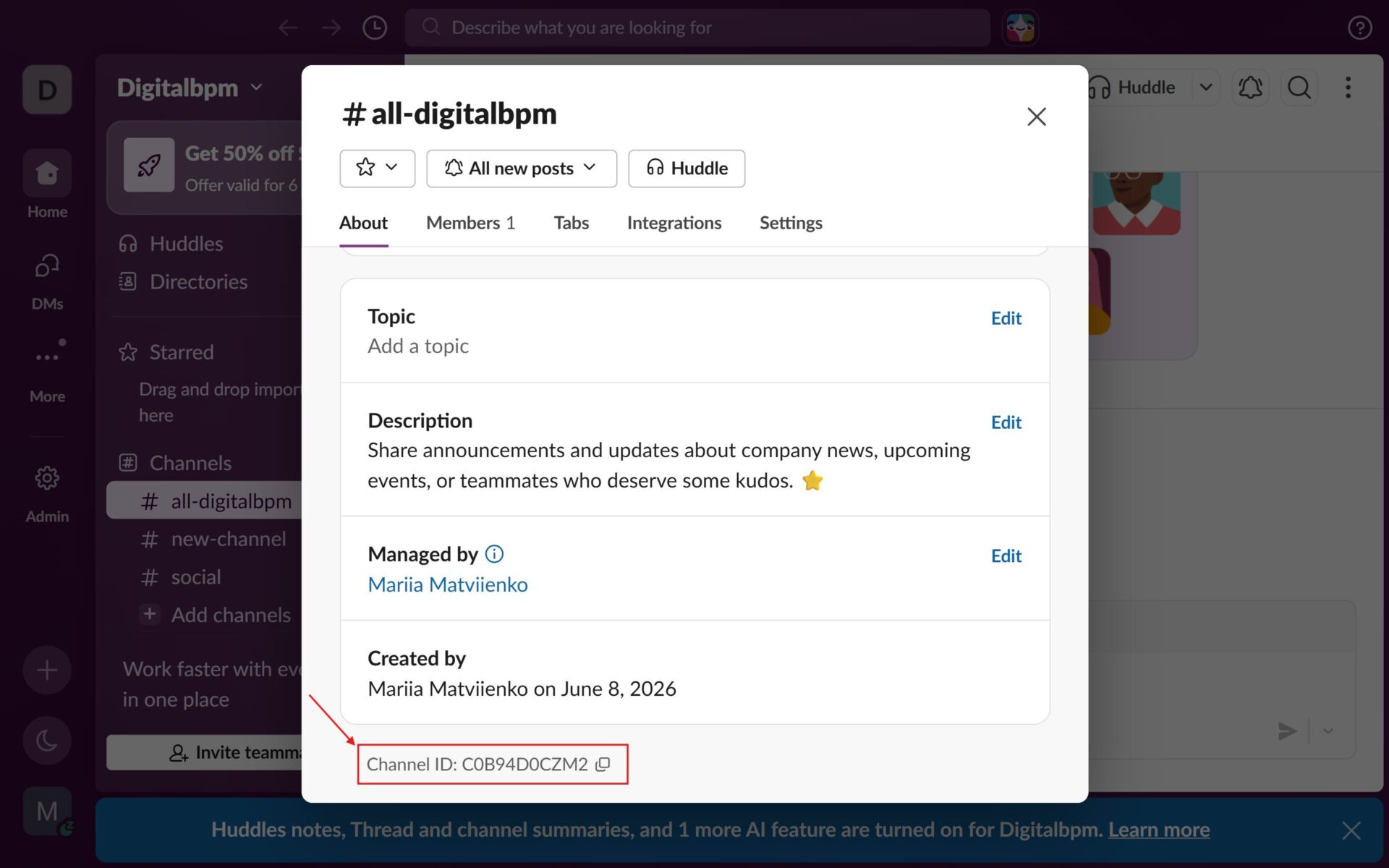
3. Next, you will need the ID of the Slack channel where the post will be published. Open the desired channel and navigate to Channel Details. In the window that appears, locate and copy the Channel ID.
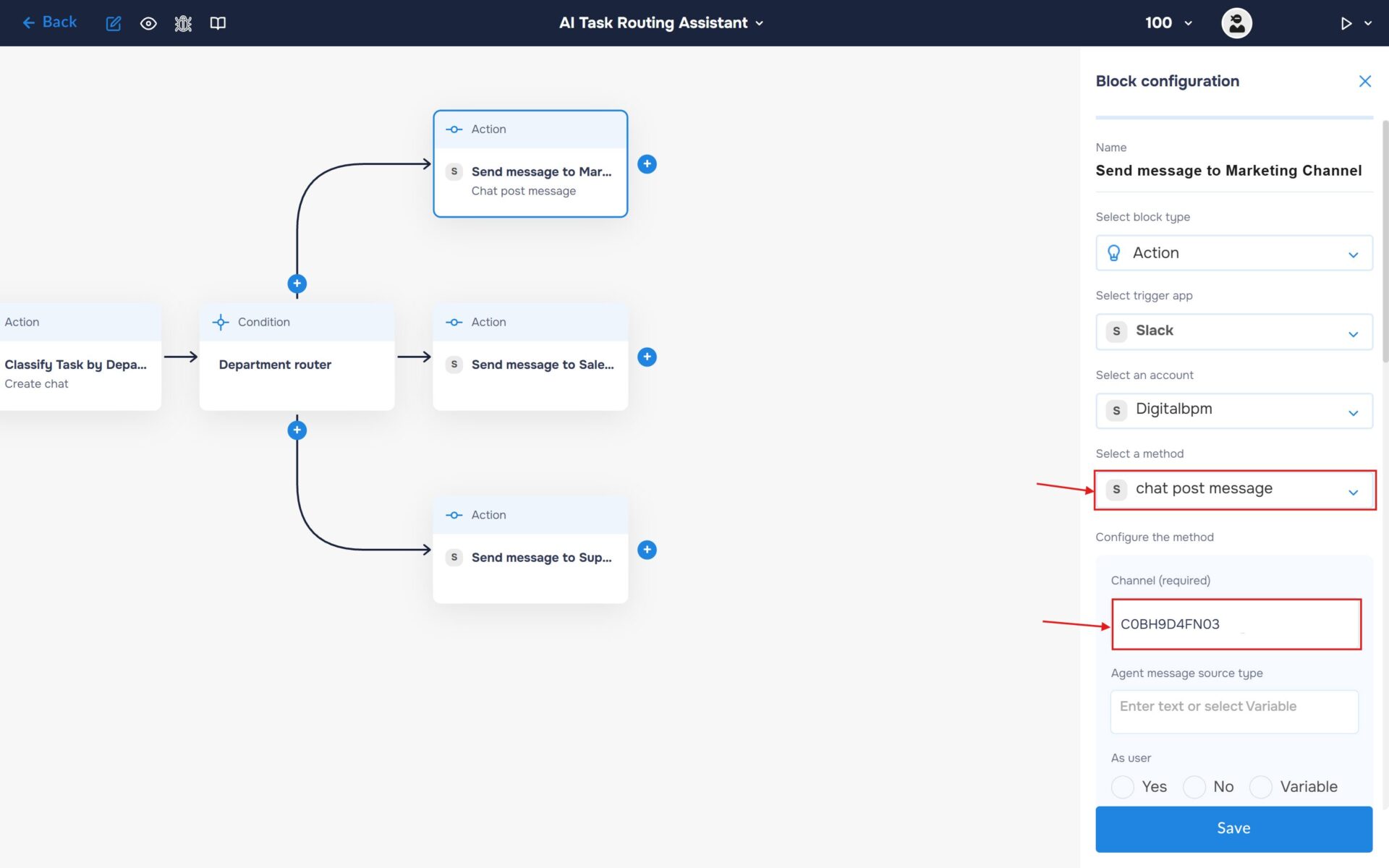
4. Select the “Chat Post Message“ method. Paste the Slack channel ID into the “Channel“ field.
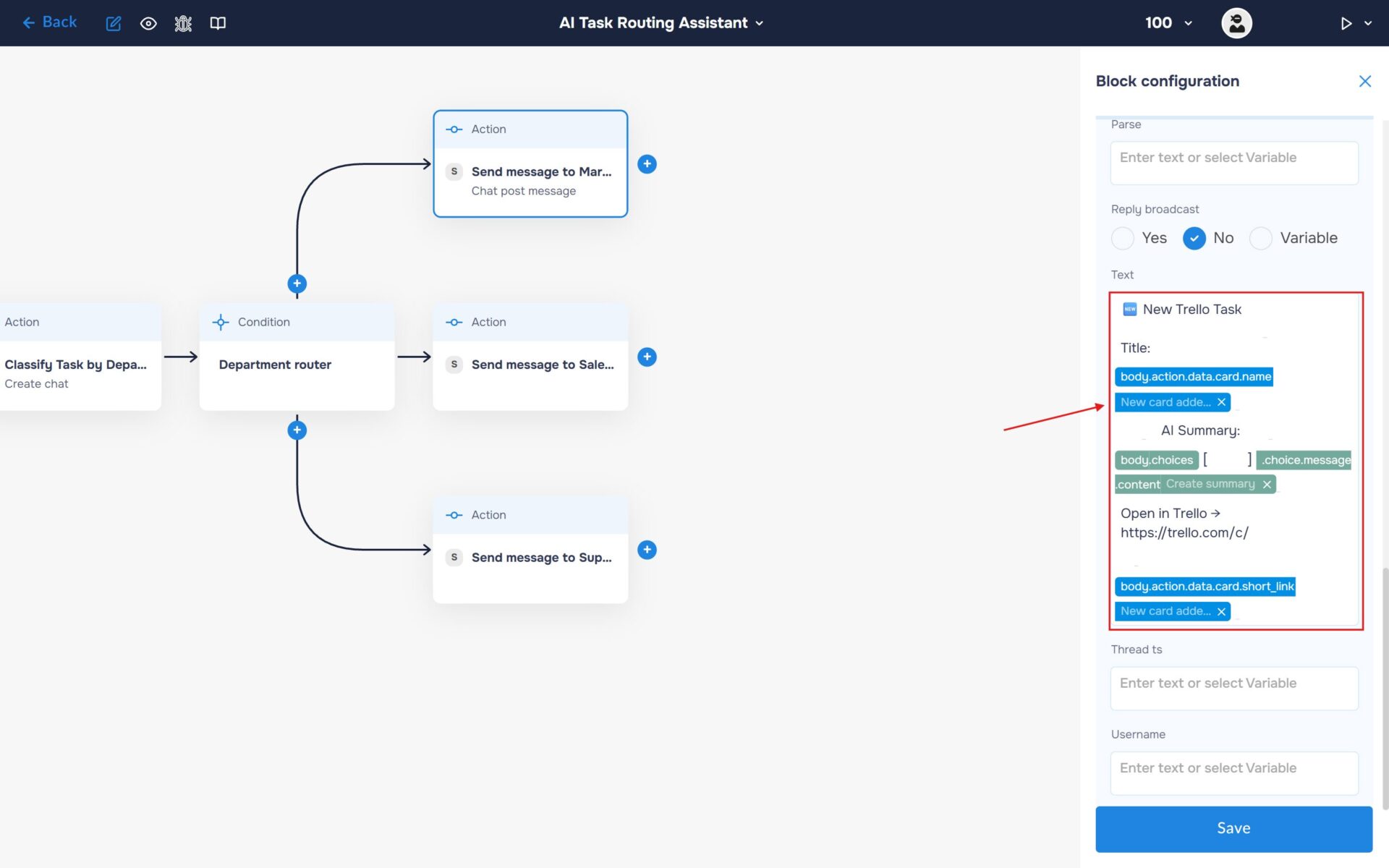
5. In the “Text” field, compose the Slack notification using the variables generated in the previous steps. Include the task title, the AI-generated executive summary, and the Trello card link.
🔧 Default Message:
🆕 New Trello Task
Title: [Card Title]
AI Summary: [Executive Summary]
Open in Trello → [Card URL]
6. Configure the Sales and Support blocks in the same way. The only difference is the selected Slack channel, which should correspond to the appropriate department.
Run to execute a workflow
1. Your workflow is now fully configured. Let’s try running it. To do this, click the “Run” icon in the top-right corner of the workflow builder and select “Run Live”, or use the keyboard shortcut “Shift+L“. If the launch is successful, the icon color will change from white to blue, and an “L” will appear next to it.
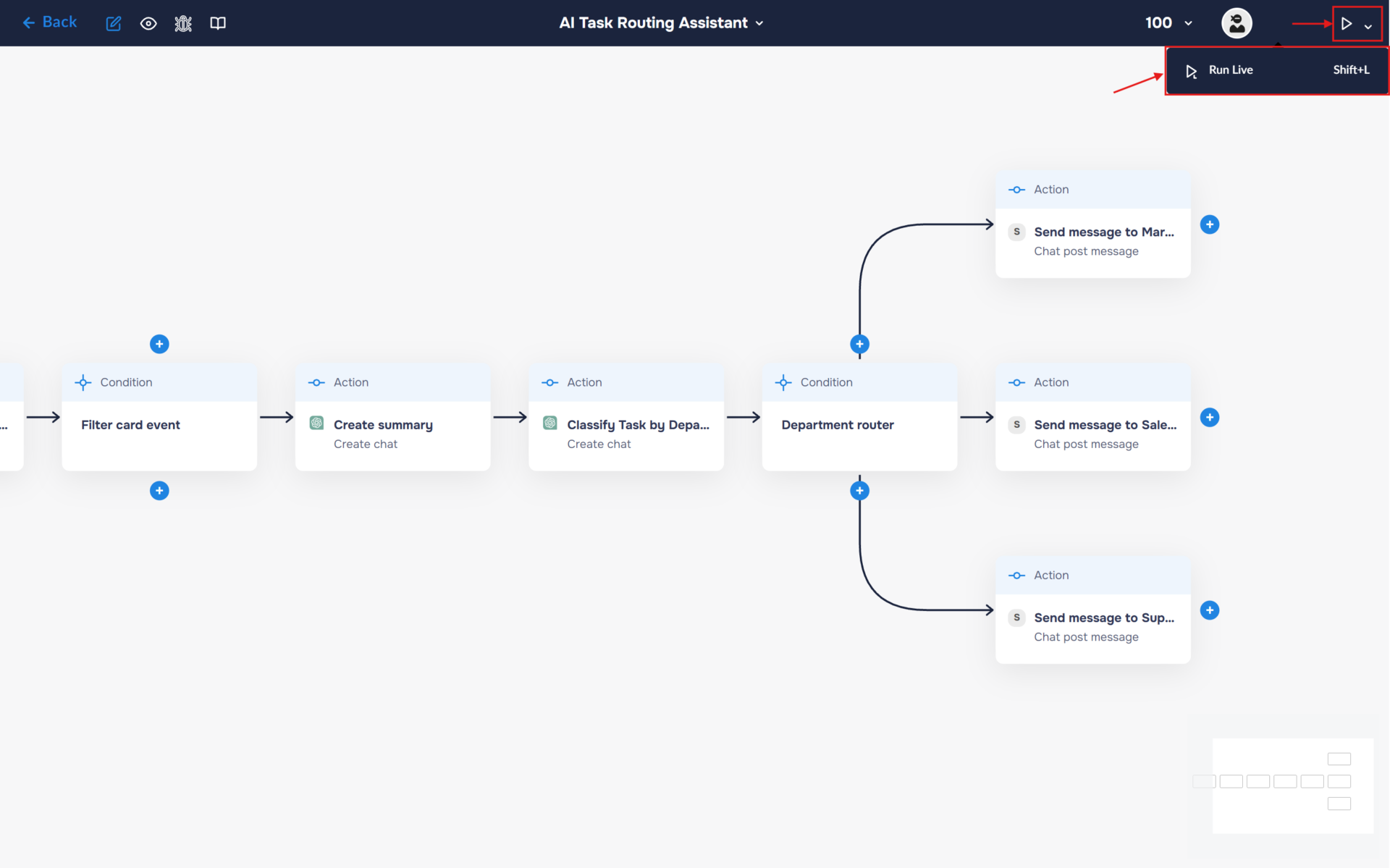
2. Verify the Automation: Go to your connected Trello board and create a new test card. Within moments, you should receive a formatted, AI-summarized notification in the corresponding Slack channel.
💡Pro Tip: If you don’t see the message, check the Execution Logs in DigitalBPM to ensure all connections are working properly.
3. Congratulations! You have successfully built an AI-powered Trello task routing workflow.
The workflow now automatically analyzes every new Trello card, generates an executive summary using ChatGPT, determines the appropriate department, and routes the notification to the corresponding Slack channel.
As a result, each team receives only the tasks relevant to them, along with the context needed to understand and act on the work immediately.