

About This Guide
This guide provides step-by-step instructions for building an AI-powered Trello daily digest assistant using the DigitalBPM platform, Trello, Anthropic Claude, and Telegram.
Instead of manually reviewing dozens of Trello cards to understand what changed throughout the day, you will create a workflow that:
- Runs automatically on a daily schedule
- Retrieves all active Trello cards from a selected board
- Uses Anthropic Claude to identify cards updated during the last 24 hours
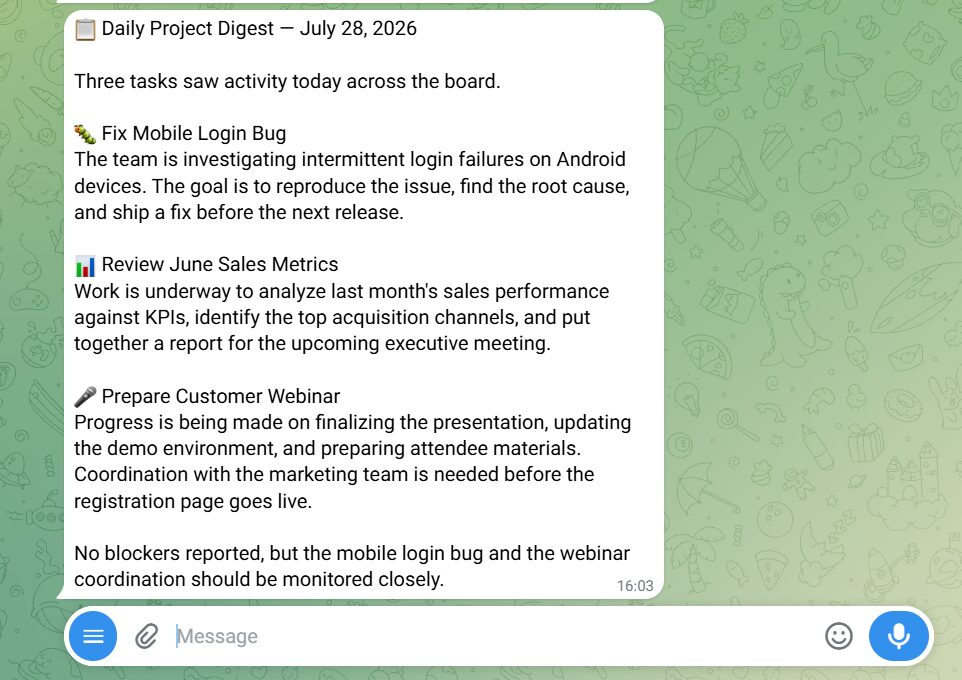
- Generates a concise daily digest highlighting the most important changes
- Delivers the summary directly to a Telegram chat for quick review
By the end of this guide, you will have a fully functional AI assistant that transforms daily Trello activity into a clear, actionable project update, helping your team stay informed without manually checking every card.
Who Is This Guide For?
This guide is designed for project managers, team leads, operations specialists, founders, and anyone responsible for monitoring project progress in Trello.
It is especially useful if you want to:
- Receive a daily overview of project activity without opening Trello
- Reduce the time spent reviewing updated tasks
- Use AI to summarize changes instead of reading every card individually
- Keep distributed teams aligned with automated project updates
- Deliver concise project digests directly to Telegram for faster decision-making
Before building this workflow, ensure you have the following ready:
- A DigitalBPM account
- A Telegram account and bot. If you haven’t created a bot yet, follow our guide — How to Register a Chatbot in Telegram — a perfect starting point if you’re searching how to make a Telegram bot.
- A Trello account
- An Anthropic Claude account with API access
If you’re ready, let’s get started!
Step 1: Create a New Workflow and Trigger Block
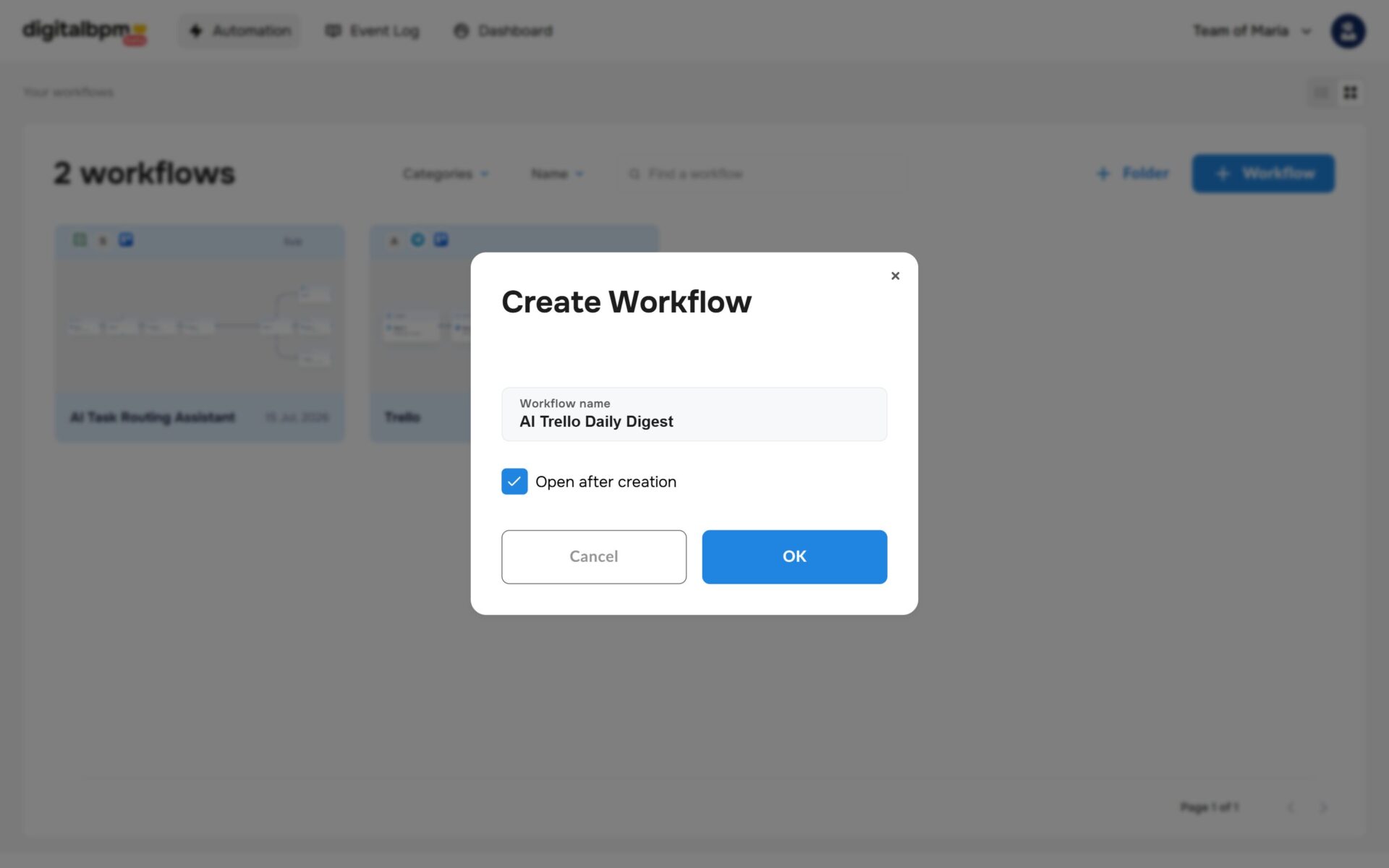
1. The first thing you need to do is to sign in to your DigitalBPM account and click on the “+ Workflow” button on the “Automation” page. Next, you need to enter a name for your workflow, for example, “AI Trello Daily Digest” and click “OK“.
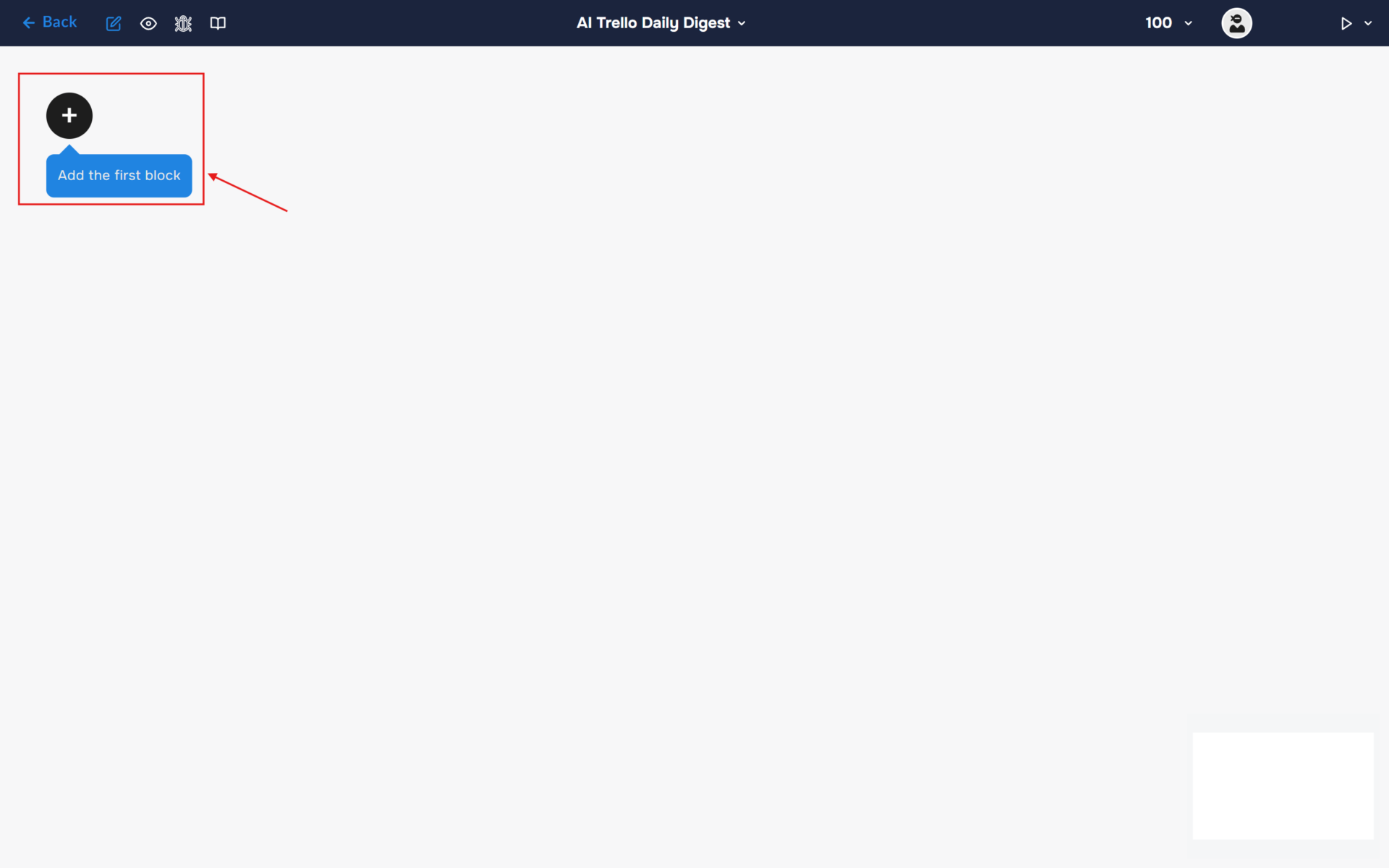
2. After confirming the creation of a workflow, its builder opens. To add the first block, click the “+ Add first block” button.
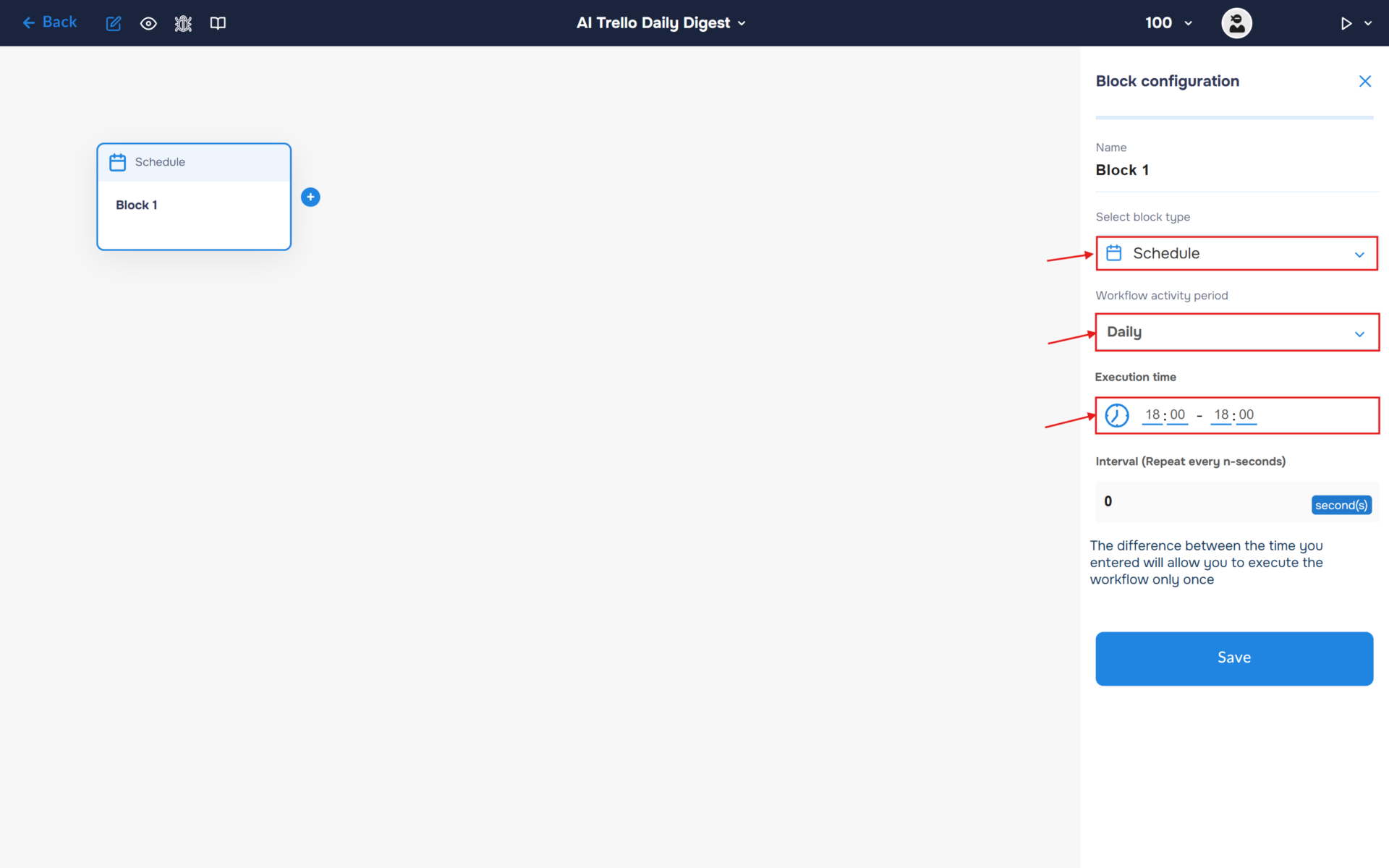
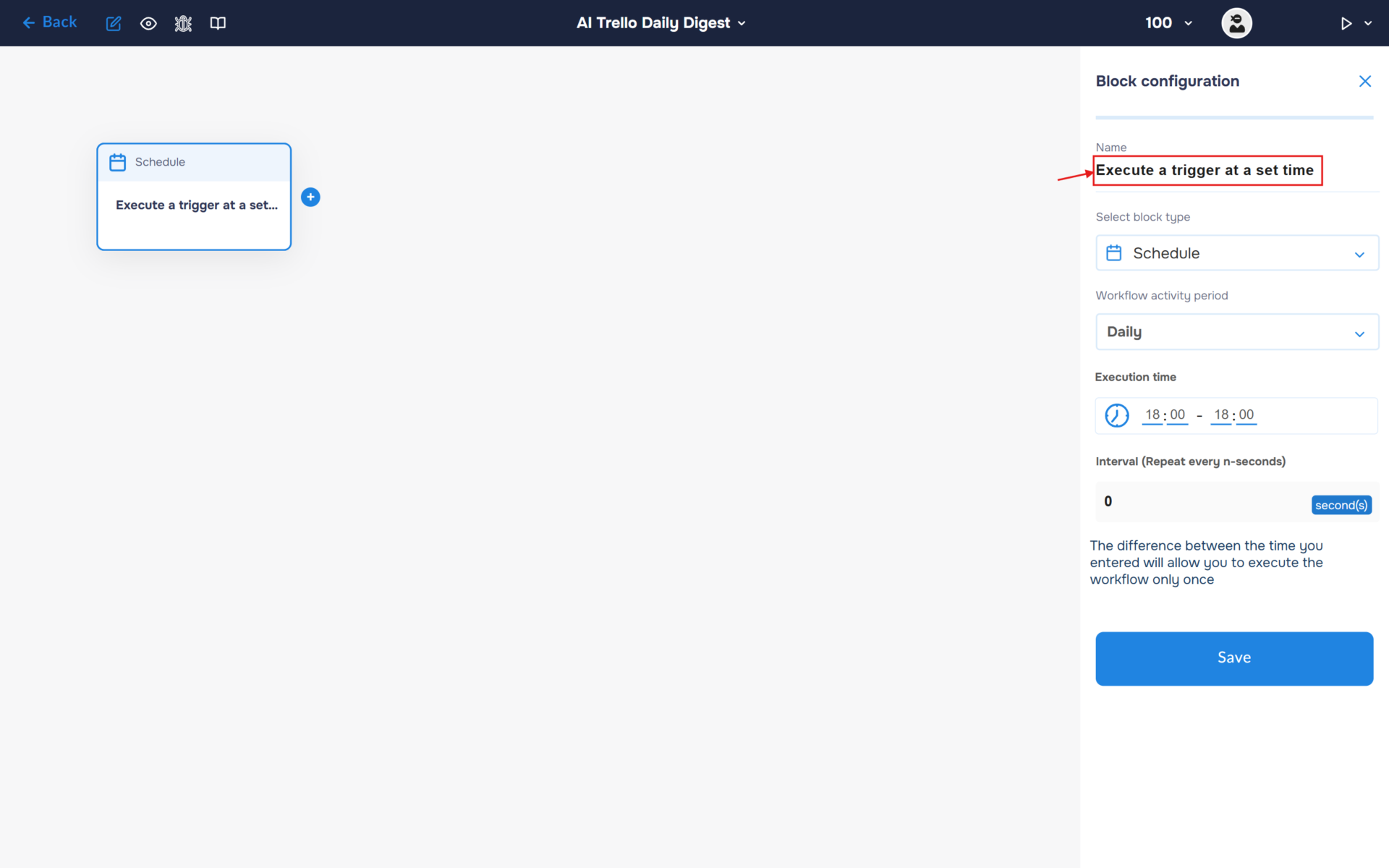
3. Next, you need to configure the first block. This block is responsible for triggering the workflow on a set schedule. To do this, click on the block to open the “Block Configuration” panel, and select the block type “Schedule”.
The workflow activation period is set to Daily by default. Set your preferred execution schedule. In this example, the workflow will run at 18:00 each day. Save the settings by clicking the “Save” button.
4. Click on the “Name” field and fill in a clear name for what happens in the block, for example, “Execute a trigger at a set time”. With this step, you can quickly find out what the block is for.
Step 2: Retrieve Active Trello Cards
1. In this step, you will configure the Trello block to retrieve active cards from the selected board. The workflow will use the board ID and filter settings to collect only the cards that are currently available and exclude archived items.
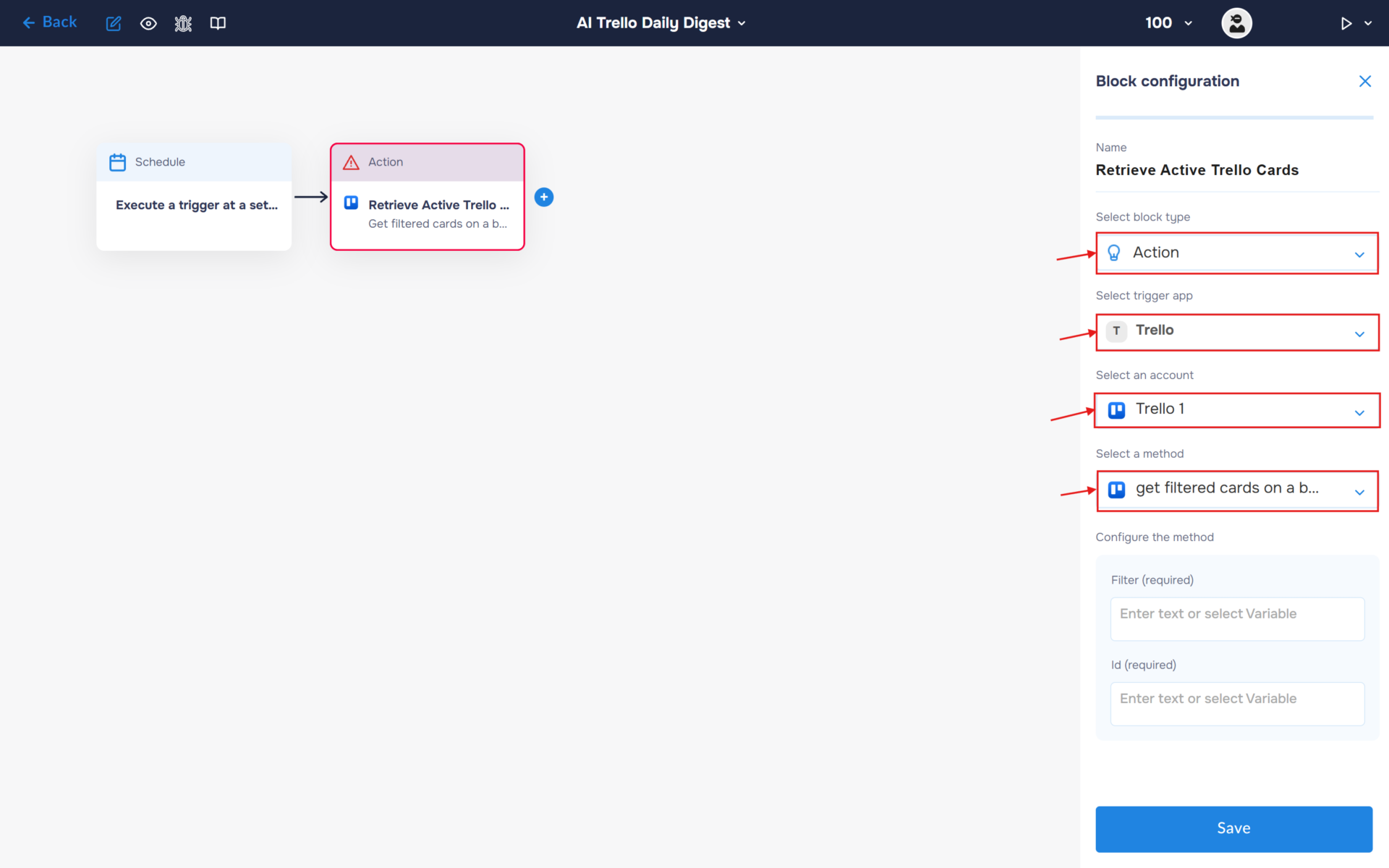
- In the “Block Configuration“ panel, click on the “Select block type“ field and select the “Action” type.
- Next, you need to add Trello service by clicking on the field “Select trigger app“; find and select “Trello“.
- To connect to service, you need to create an authorisation. Click on the “Sign in“ button in the “Select an account“ section.
- After clicking the button, a window for creating a new authorization will open. Enter a name for the authorization, provide the required credentials, and save the connection.
- If the authorization is successful, the created authorization will appear in the “Select an account” field. You need to select this authorization to configure the next steps of the block.
- The next step is to select an event, so click on the “Select a method“. Find and select “get filtered cards on a board”.
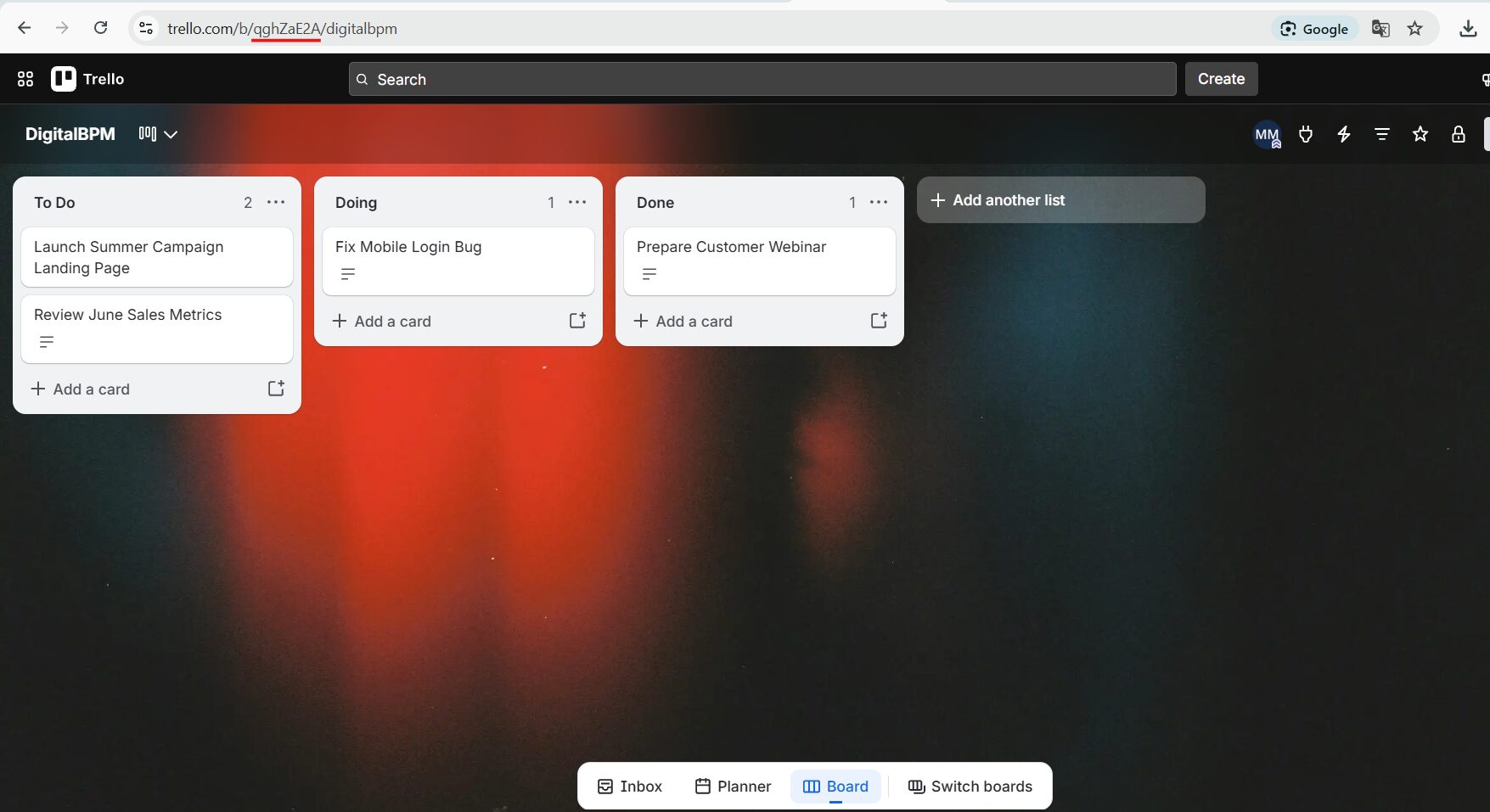
2. Open your Trello board and copy the Board ID from the browser address bar.
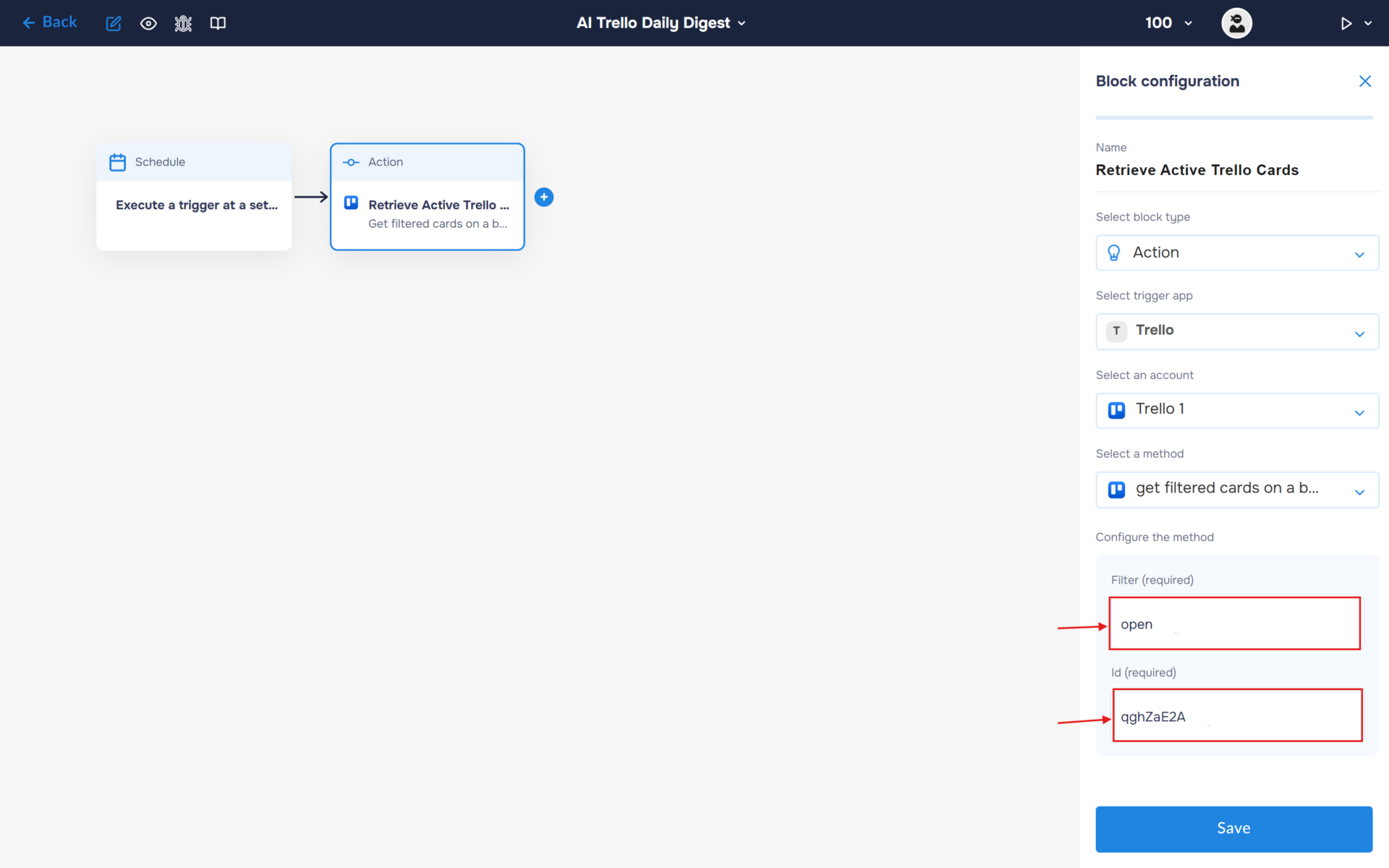
3. Fill the “Filter” field with “open” and insert the board ID obtained in the previous step.
Step 3: Integrate Anthropic Claude for Daily Activity Analysis
1. In this step, Anthropic Claude analyzes the retrieved Trello cards and generates a concise daily digest. Instead of listing every card, the AI identifies activity from the last 24 hours, highlights the most important updates, and prepares a Telegram-ready project summary.
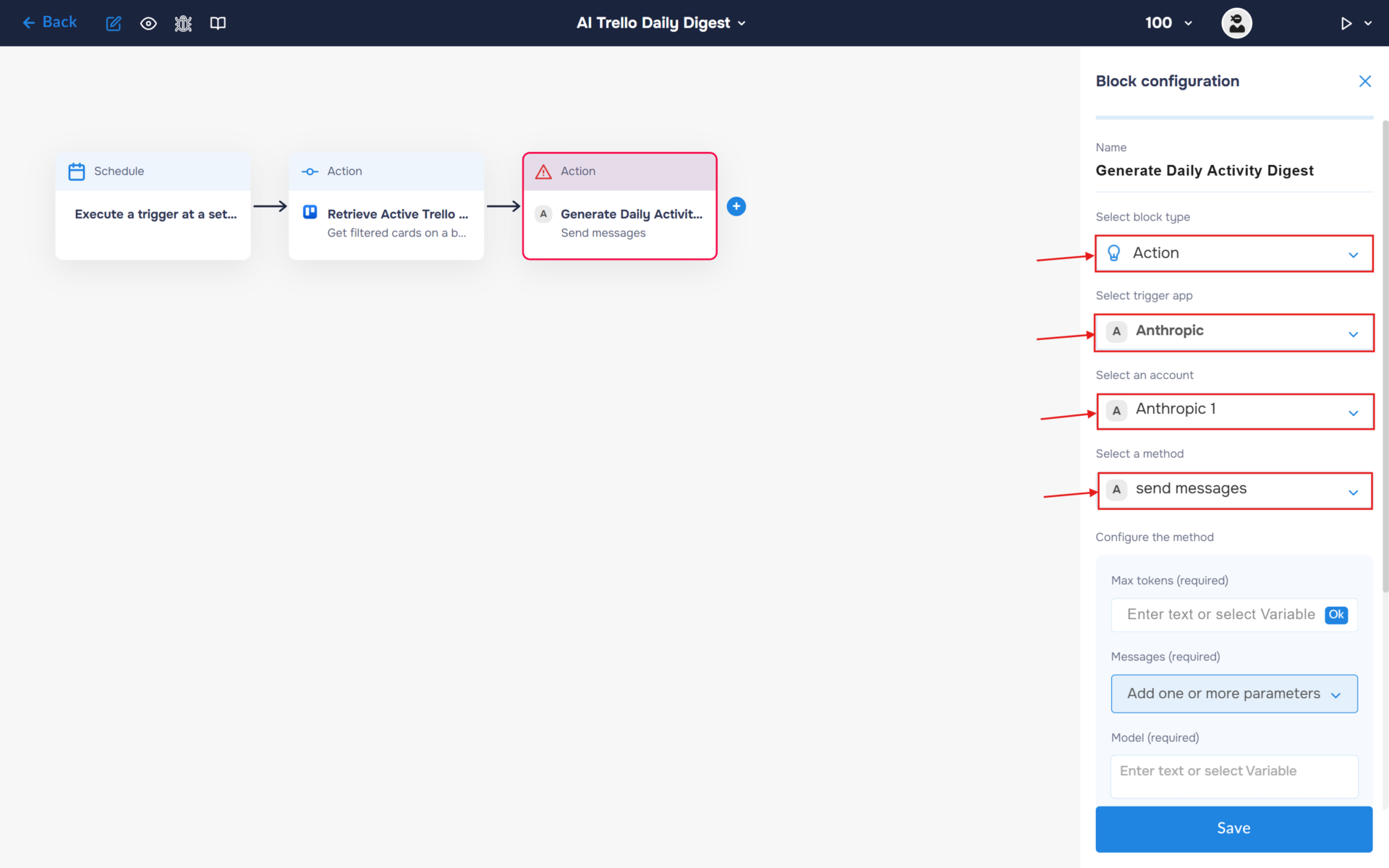
- In the “Block Configuration“ panel, click on the “Select block type“ field and select the “Action” type.
- Next, you need to add Anthropic Claude service by clicking on the field “Select trigger app“; find and select “Anthropic“.
- To connect to service, you need to create an authorisation. Click on the “Sign in“ button in the “Select an account“ section.
- After clicking the button, a window for creating a new authorization will open. Enter a name for the authorization, provide the required credentials, and save the connection.
- If the authorization is successful, the created authorization will appear in the “Select an account” field. You need to select this authorization to configure the next steps of the block.
- The next step is to select a method, so click on the “Select a method“. Find and select “send messages”.
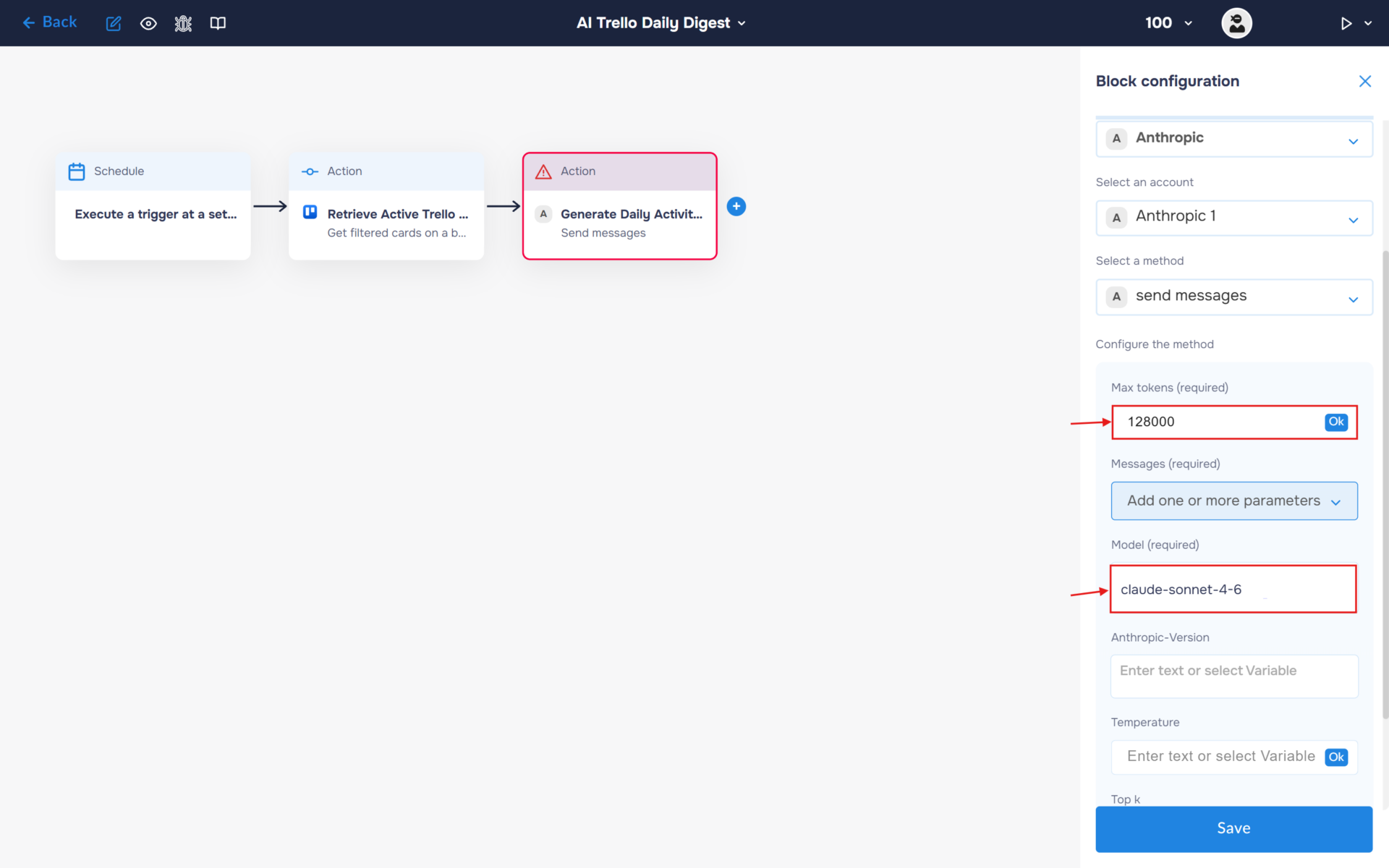
2. Specify the model name in the corresponding field (for example, “claude-sonnet-4-6”) and set the Max tokens“ supported by the selected model. For Claude Sonnet 4.6, the maximum context window is 128,000 tokens, enabling the AI to process large volumes of Trello card data and generate accurate, context-aware project summaries.
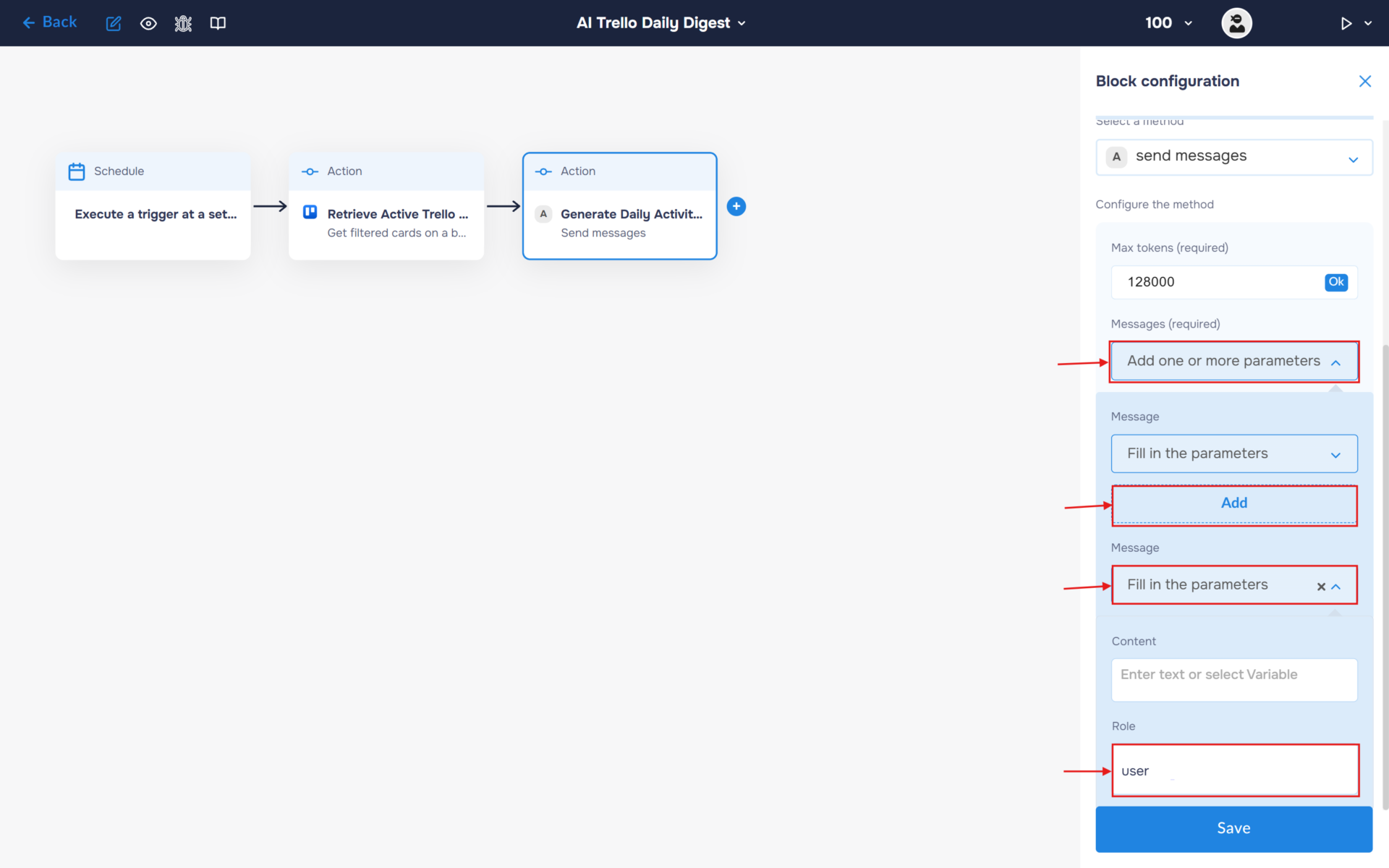
3. In the “Message” section, select “Add one or more parameters”. Add a “Message” object and expand it. Then expand “Fill in the parameters”. This is where you will enter the prompt that will be sent to the AI model for processing.
Fill the “Role“ field with value “user“.
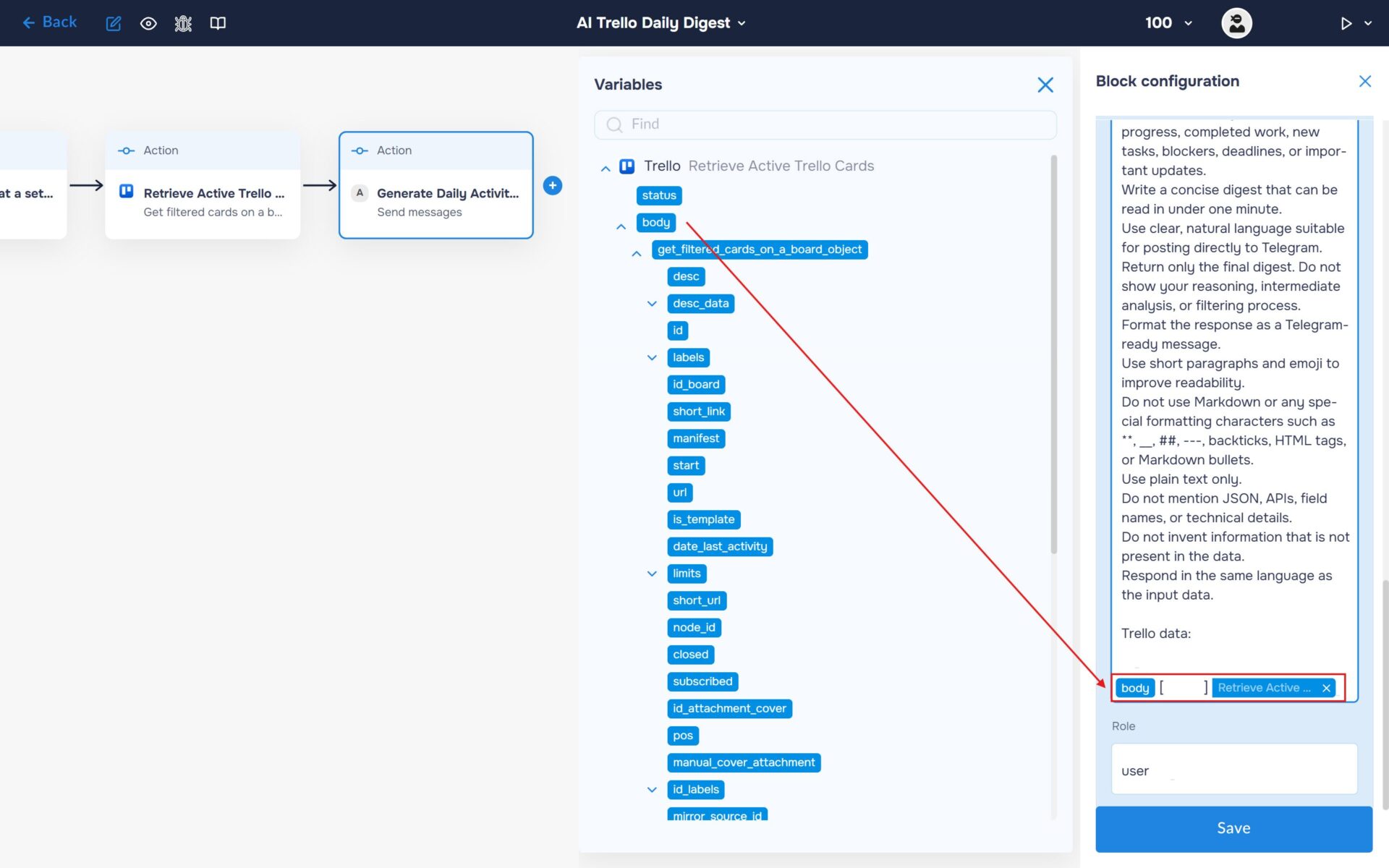
4. Fill the “Content“ field with your prompt and insert variables.
🔧 Default Prompt: You are an AI project assistant.
You will receive a collection of Trello cards representing the current state of a project board.
Your task is to generate a daily project digest.
Instructions:
Analyze all provided Trello cards.
Include only cards whose last activity occurred within the last 24 hours.
Ignore archived cards if any are present.
If no cards were updated during the last 24 hours, respond with:
No project activity was detected during the last 24 hours.
Group related updates together when appropriate instead of describing every small change separately.
Focus on meaningful project progress, completed work, new tasks, blockers, deadlines, or important updates.
Write a concise digest that can be read in under one minute.
Use clear, natural language suitable for posting directly to Telegram.
Return only the final digest. Do not show your reasoning, intermediate analysis, or filtering process.
Format the response as a Telegram-ready message.
Use short paragraphs and emoji to improve readability.
Do not use Markdown or any special formatting characters such as **, __, ##, —, backticks, HTML tags, or Markdown bullets.
Use plain text only.
Do not mention JSON, APIs, field names, or technical details.
Do not invent information that is not present in the data.
Respond in the same language as the input data.
Trello data: {Insert data from Trello}
Step 4: Send the Daily Digest to Telegram
1. In the final step, the workflow delivers the AI-generated daily digest to Telegram. This allows your team to receive a concise summary of the latest Trello activity automatically, without opening the project board.
- In the “Block Configuration“ panel, click on the “Select block type“ field and select the “Action” type.
- Next, you need to add Telegram service by clicking on the field “Select trigger app“; find and select “Telegram“.
- To connect to Telegram, you need to create an authorisation. Click on the “Sign in“ button in the “Select an account“ section.
- After clicking the button, a window for creating a new authorization will open. Enter a name for the authorization, provide the required credentials, and save the connection.
- If the authorization is successful, the created authorization will appear in the “Select an account” field. You need to select this authorization to configure the next steps of the block.
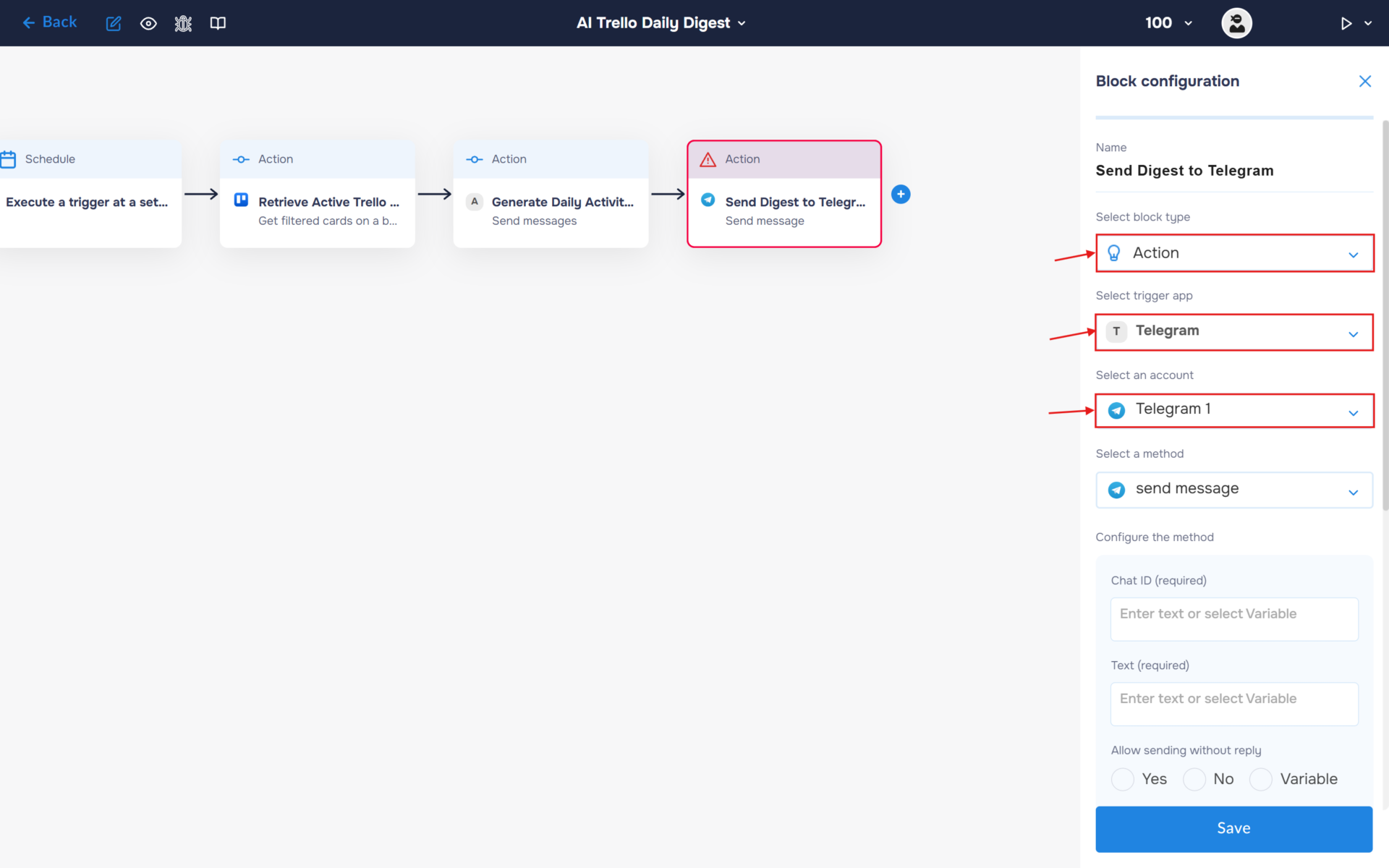
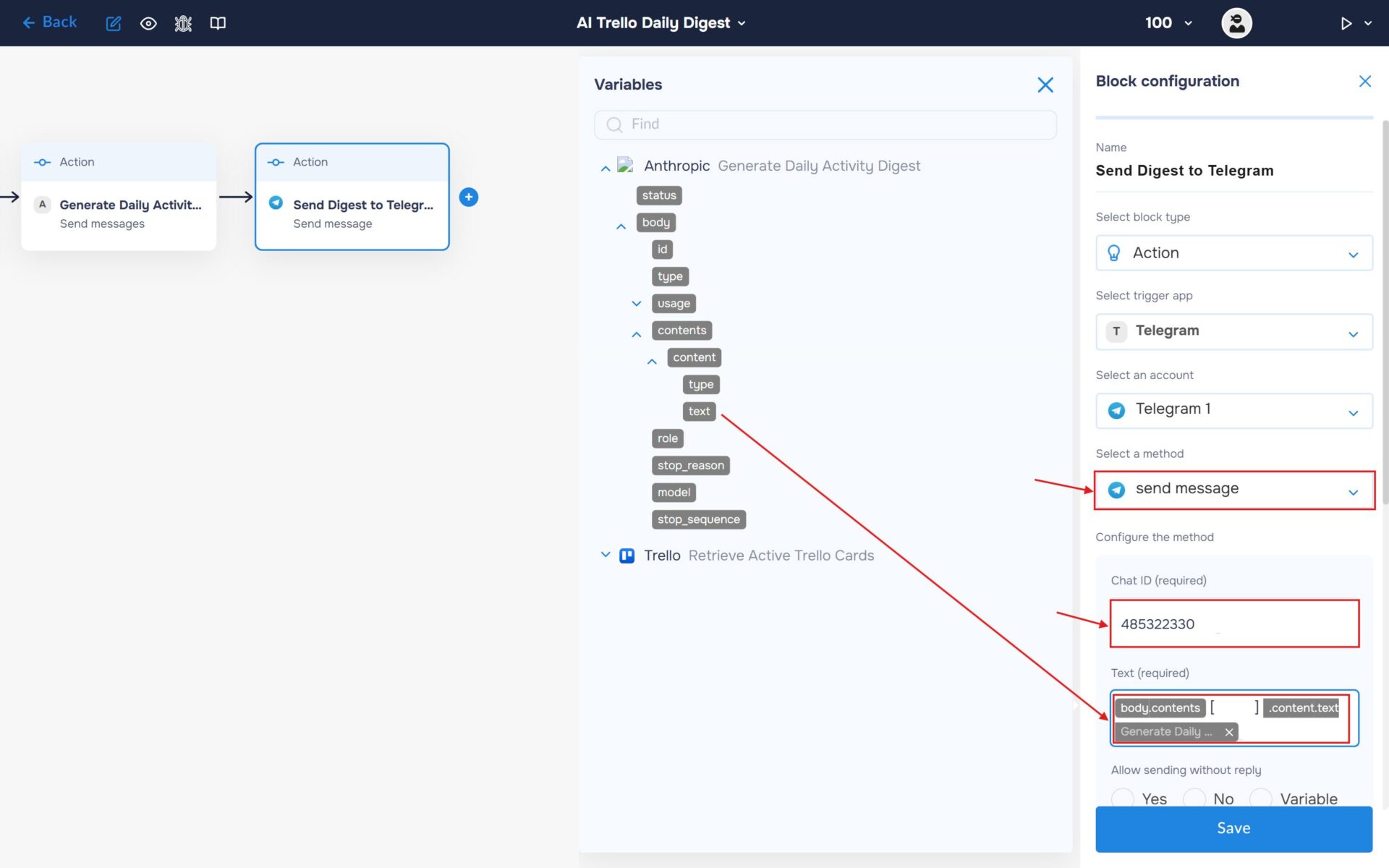
2. Select the “Send Message” method and fill in the ChatId and Text fields. To obtain your ChatId, you can use the Telegram bot @id_bot. In the “Text field”, insert the daily digest generated by Anthropic Claude so it can be delivered directly to your Telegram chat.
Run to execute a workflow
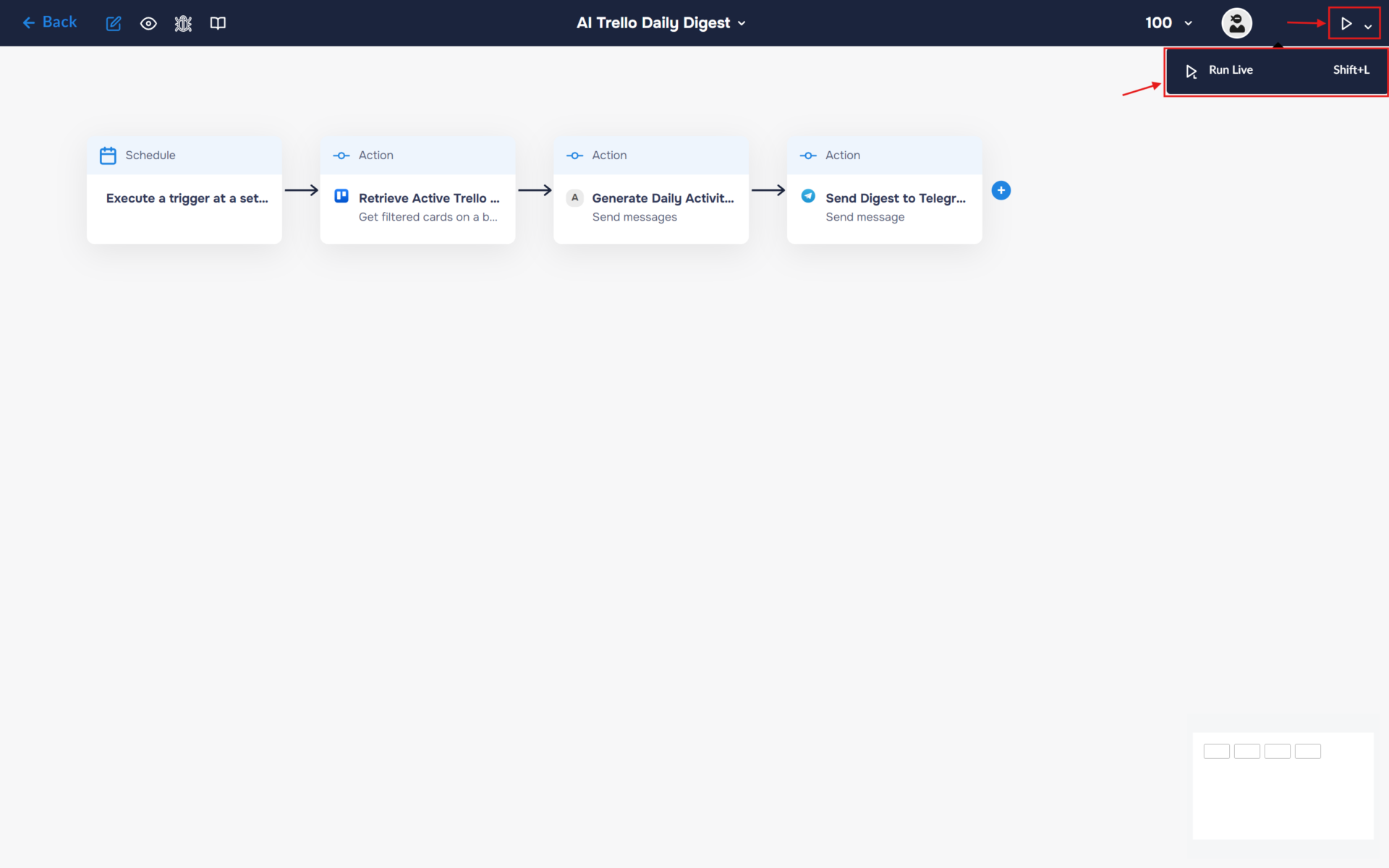
1. Your workflow is now fully configured. Let’s try running it. To do this, click the “Run” icon in the top-right corner of the workflow builder and select “Run Live”, or use the keyboard shortcut “Shift+L“. If the launch is successful, the icon color will change from white to blue, and an “L” will appear next to it.
2. Congratulations! You have successfully built an AI-powered Trello daily digest assistant.
The workflow now runs automatically on a daily schedule, retrieves active Trello cards from your board, analyzes recent activity with Anthropic Claude, and generates a concise digest containing only the most important updates from the last 24 hours.
Instead of manually reviewing every card, your team receives a clear project summary directly in Telegram, making it easier to stay informed, identify priorities, and monitor project progress with minimal effort.